Web UI
sind ui starts a web UI for sind on your machine. It shows the clusters, nodes and networks of a realm and the runs of sind commands. You can also start the actions that change something: create a cluster, add workers, power nodes, or delete. Each action shows the exact sind command first, so the UI also teaches the CLI.
The UI runs the same sind commands as your terminal. It does not replace them. Long commands show their progress live, step by step and node by node.
The pages of the docs that tell you how to do a task show the steps for the CLI or for the web UI. Select Web UI at the top of such a page, or on one of its tabs, to see the steps for the UI on all pages. Your browser keeps the choice. The help pane of sind ui opens the docs with the steps for the UI.
Start it
sind uisind prints the URL. Open it in your browser, or add --open to have sind open it:
sind ui: http://127.0.0.1:41873/?token=...
Press Ctrl-C to stop.
The UI runs until you press Ctrl-C in that terminal. Pressing Ctrl-C stops the server. Commands that the UI started are interrupted, and they roll back (see Stop a run).
Useful flags:
| Flag | Effect |
|---|---|
--port PORT |
Listen on this port on 127.0.0.1. By default sind takes a free one. |
--open |
Also open the URL in your browser. |
--monitoring-interval DURATION |
How often to read the monitoring stacks while a page is open, from 5s to 1h. The default is 30s. |
--demo |
Show made-up clusters, and play the commands instead of running them. It uses no Docker and changes nothing. |
The UI listens on 127.0.0.1 only. Only your user can open it. To use it from another machine, forward the port over SSH and use the same port on both ends (see Use it from another machine).
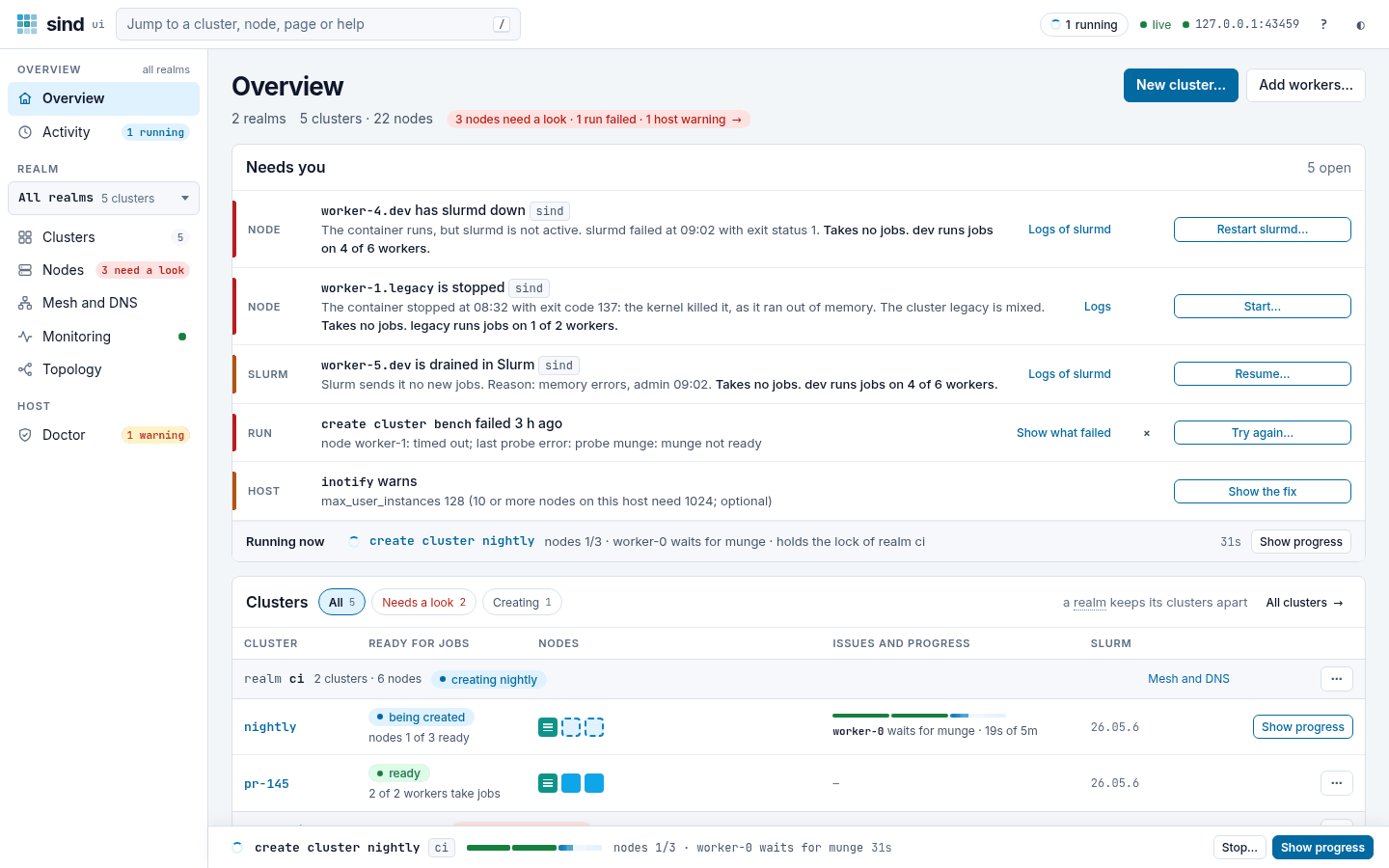
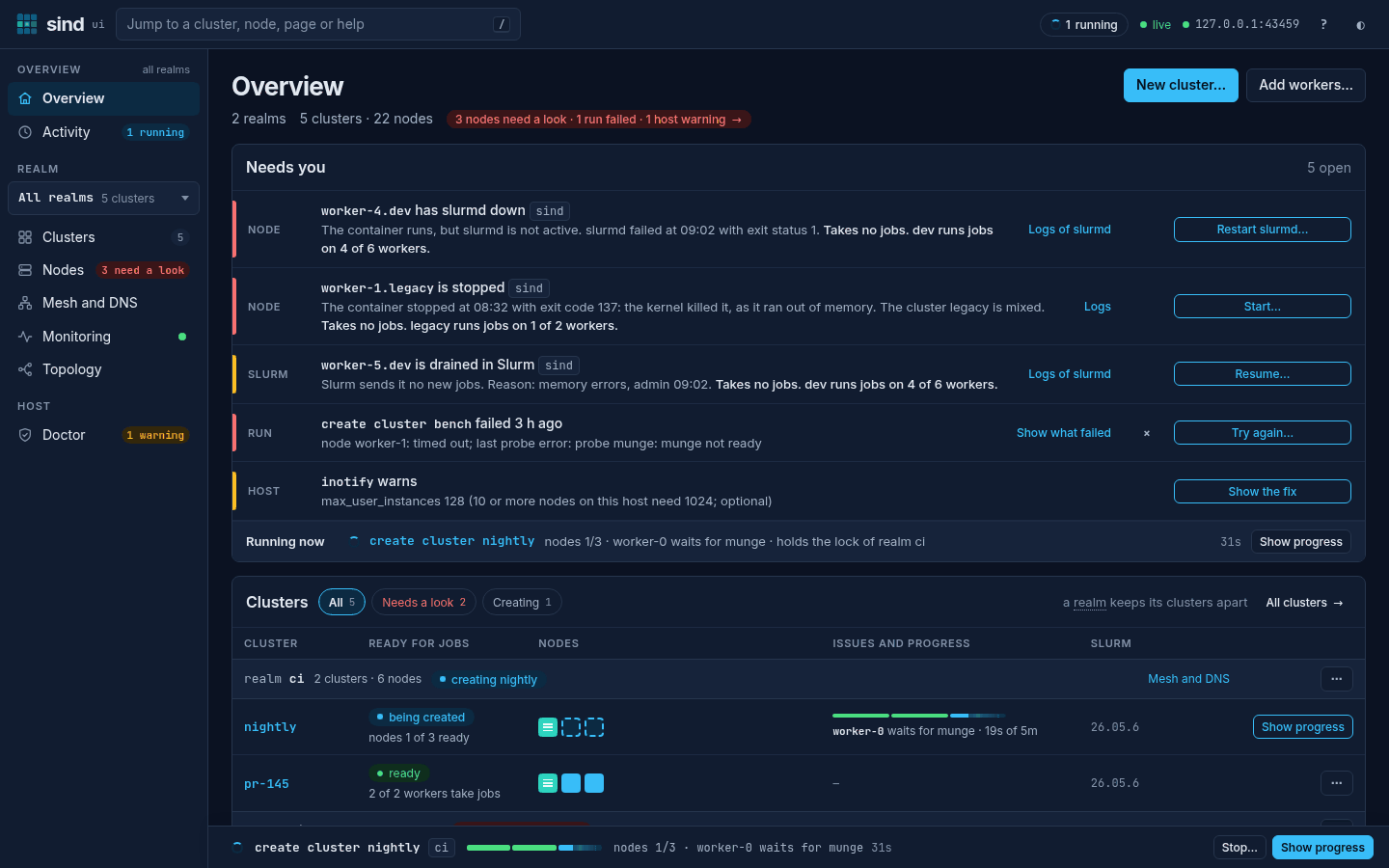
To try the UI without Docker, run sind ui --demo. It shows made-up clusters, and its dialogs play the commands instead of running them. The screenshots in these docs come from it.
The parts of the window
- The rail on the left lists the pages. A badge says what needs you, with its unit:
2 need a lookfor nodes (the number alone on a phone),1 warningor1 failedfor the host checks,1 failedfor runs. A green dot means that all is well. Clusters shows how many clusters there are. The badges of the Realm group count the realm that its switcher picked, and those of Overview and Activity every realm; their label says which when there is more than one. On a phone, and in a window that is not high, the rail is a bar at the bottom of the screen: Overview, Clusters, Nodes, Doctor and More, which opens the other pages. - The top bar has the jump box, which finds a cluster, a node, a page or a help entry, or acts on one, and the button of the task dock, which counts the commands, such as
1 running | 1 failed. live shows that the page gets updates.?opens the help for the page you are on, and ◐ turns the dark theme on or off. - The realm switcher heads the Realm group of the rail: Clusters, Nodes, Mesh and DNS, Monitoring and Topology. It shows the realm they show, or All realms, and a dot when another realm needs a look. Its menu lists each realm with its clusters and what needs a look, such as
2 clusters · 1 needs a look; pick one, and the page shows only that realm. The page says so in its head, such as2 clusters in realm ci., and its address has?realm=ci, so a link that you share shows the same. On a cluster or node page, a pick opens the list of clusters or nodes of that realm. The UI remembers the realm you picked: the links of the group keep it, and the lists open with it. Overview and Activity always show every realm, and the rail says so. A realm row of the Overview, or a realm chip of Activity, filters only that page, which saysOnly realm ci on this page.with Show all realms; the switcher keeps its realm. On a phone, the switcher is at the top of More. - Connection lost shows at the top when the page stops getting updates, for example because
sind uistopped. The page then dims, and its buttons wait until it is live again. See Connection lost. - The task dock is a strip at the bottom of the page with the command that runs, and Commands, the list that its button in the top bar opens, with the commands that run and those that ended (see Runs and Progress).
- A dotted word explains itself when you point at it, tap it or give it the focus. Services such as slurmctld and slurmd, node roles such as submitter, and words of sind such as realm are dotted.
- Skip to content is the first stop of the Tab key. It skips the top bar and the rail.
Find things and get help
The jump box finds what you type in the names of clusters, nodes, pages and runs, and in the help: type sbatch, clean up or stuck to find the how-to for it. Clusters and pages come before nodes. When the list holds only some of the results, its last line says how many there are. Start with ? to search the help only. The results come in groups, such as Actions, Clusters, Nodes, Help and Runs, with the runs last. An entry that has a command shows it on the right, and Tab copies it. Without a query, the box lists up to five clusters, the actions that you use most (New cluster, Add workers and Power) and the pages; actions that cannot be undone show only when you type their name.
Type what to do, then what to do it to, as on the command line: reboot worker-4, drain worker-[1-3].dev, logs worker-1.dev, shell dev, add workers to dev or delete dev. The group Actions comes first; its heading says what the word is in sind’s commands, such as stop = sind power shutdown. Reboot worker-4.dev… opens Power with Reboot and the node ticked, Copy the shell command of dev copies sind enter dev, and Drain worker-[1-3].dev… shows sind exec dev -- scontrol update NodeName=worker-[1-3] State=DRAIN Reason=WHY: replace WHY with your reason. An action that does not fit the node is dimmed and says why, such as worker-1.legacy does not run., below the first fix of the node, such as Start worker-1.legacy…. restart slurmd worker-4 puts Restart slurmd on worker-4.dev… first, before the reboot. The words of other tools work too: restart, stop, pause, undrain, ssh, terminal, remove, grow. A word without a target, such as reboot, asks for the cluster next. A target that names nothing, such as a typo, gets the line No node or cluster matches worker-99. The pages and other actions that match follow, such as New cluster for start, then a few entries of help. Type the name of one node or one cluster alone, and More for it lists what you can do with it: the first fix of a node that needs a look, its logs, its ssh command and Reboot, or Add workers, the shell and Delete cluster.
An action that needs a cluster, such as Power, asks for it next: the box lists the clusters, the one of the page you are on first, and opens the dialog of the cluster you pick. Backspace in the empty box goes back. Add workers opens at once, for the cluster of the page you are on, else with a list of the clusters to pick from. An action of a realm, such as Delete realm, asks for the realm when there is more than one.
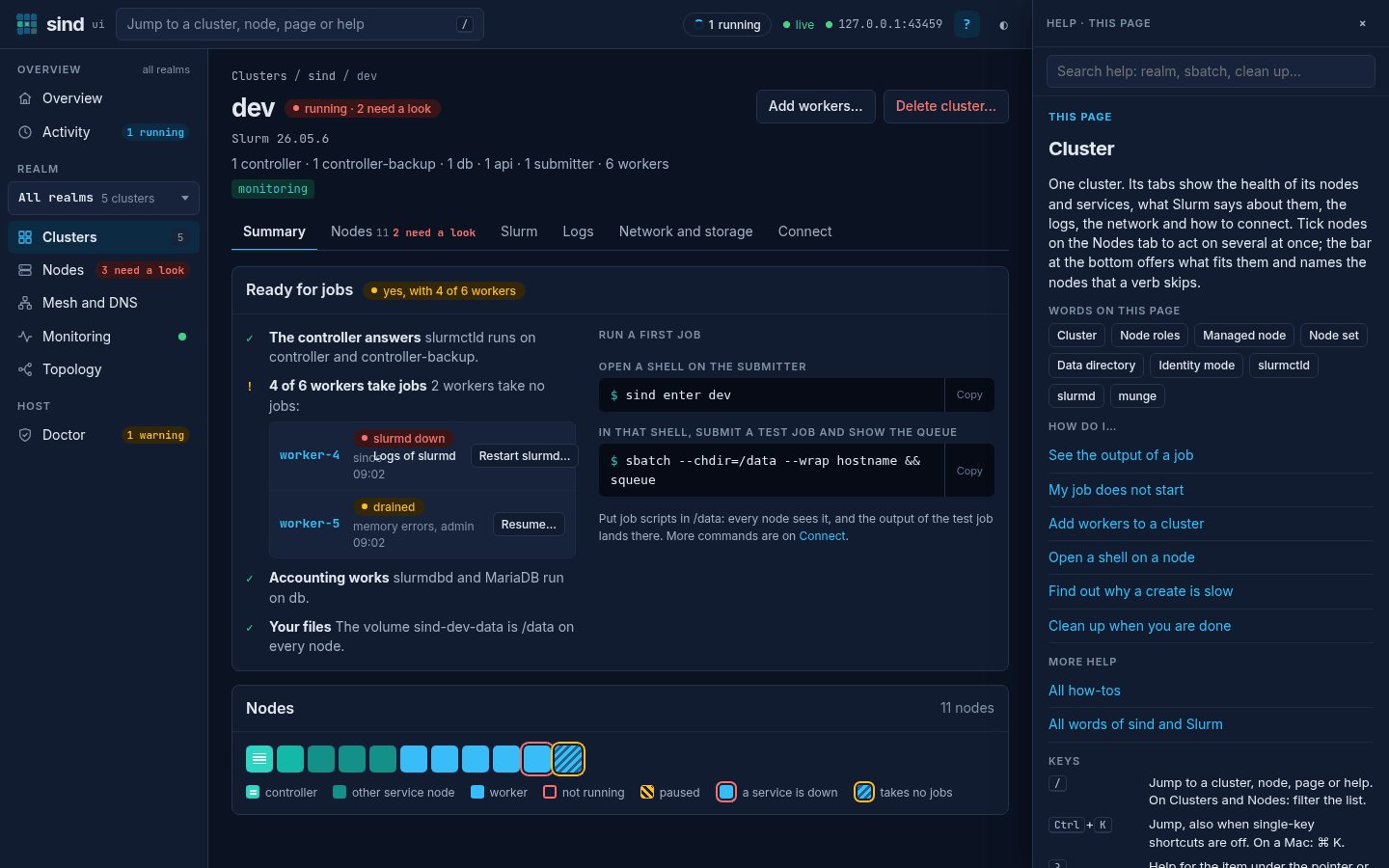
The help pane shows the help of the page: what it shows, the words on it and how to do the common things. The ? button of a dialog opens the help of that dialog, above it. A pane that you left open stays beside a dialog that opens later, or behind it on a narrow screen. The pane takes the focus, and Esc closes it and takes you back to where you were. On a phone the pane fills the screen, and Tab and a screen reader stay in it until you close it. All how-tos and All words list every how-to and every word, such as how to see the output of a job, what to do when a job does not start, and how to clean up when you are done.
The address /help opens the same texts as a page of their own, with a search that works without script, so that you can bookmark or share an entry.
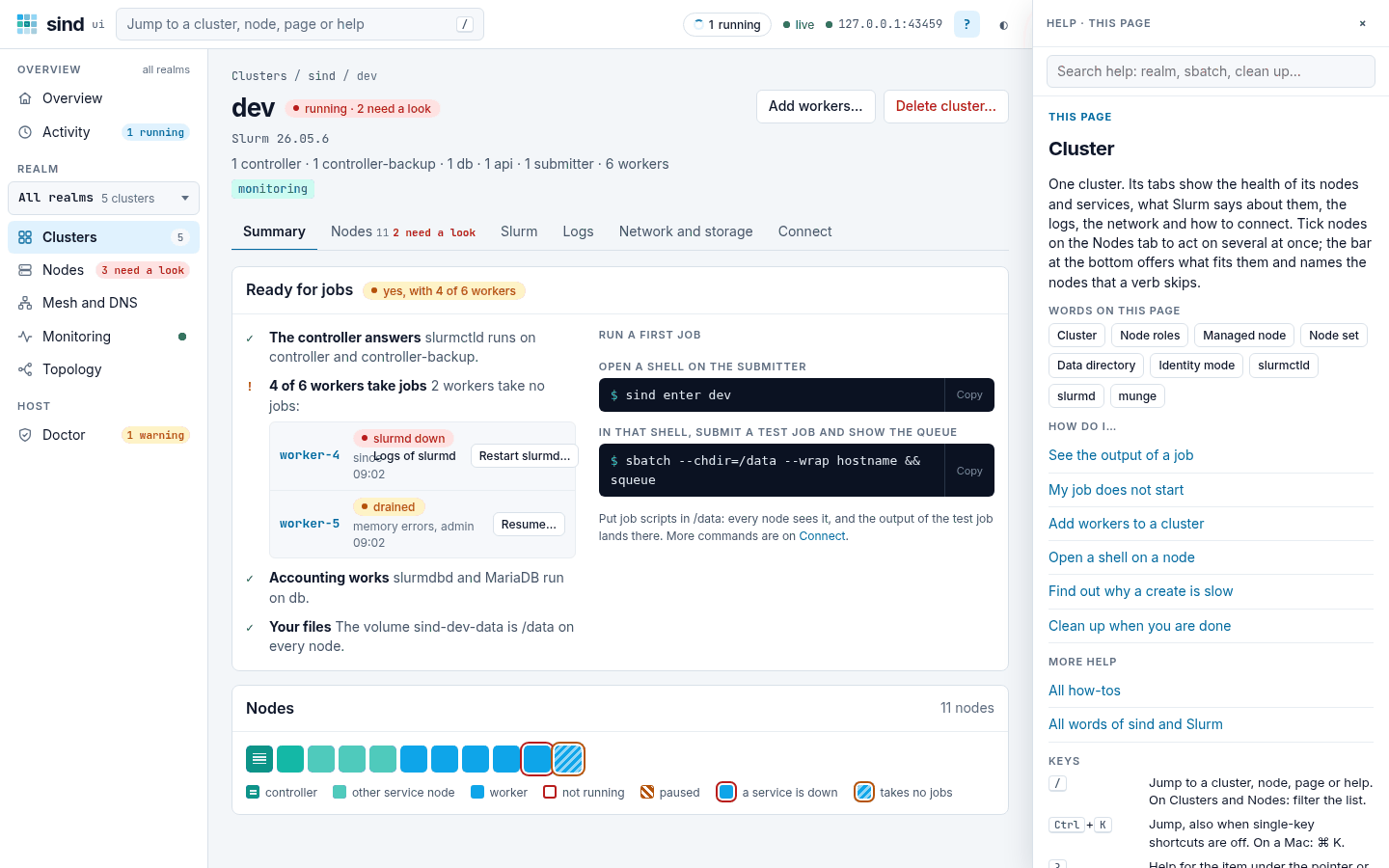
Keys
| Key | What it does |
|---|---|
/ or Ctrl+K |
Open the jump box. On a Mac, ⌘ K. On Clusters and Nodes, / goes to the filter of the list instead. |
? |
Help for the item under the pointer or with the focus, else for the open dialog or the page |
g then o, c, n, m, p, t, d or a |
Go to Overview, Clusters, Nodes, Mesh and DNS, Monitoring, Topology, Doctor or Activity |
↑ ↓, Enter |
Move through the results of the jump box, and open one |
Tab |
Copy the command of the result of the jump box that you reached |
Ctrl+Enter |
Run the command of the dialog. On a Mac, ⌘ Enter. |
Esc |
Close the hint card, the jump box, the help pane or the dialog. A dialog with changes asks first. |
Keys do nothing while you type in a field, except Esc, Ctrl+K and Ctrl+Enter. To turn off the shortcuts of one key (/, ? and the g keys), as speech input can press them by accident, open Keys in the help pane, or type keys in the jump box, and clear Single-key shortcuts. Ctrl+K and Esc still work, and the buttons and hint cards stop showing / and ?. Your browser keeps the setting.