Runs and Progress
When you start an action, its run appears in the task dock, on its run page and on the page of its cluster.
The task dock
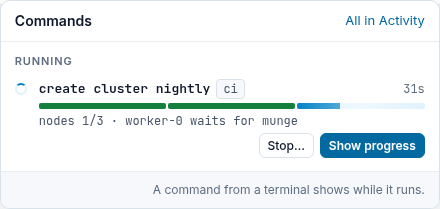
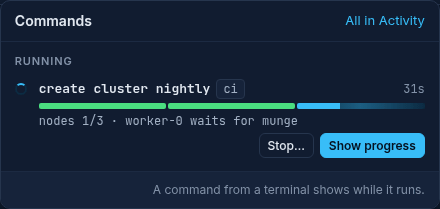
The task dock has two parts: a strip at the bottom of the page, and Commands, a list that opens from the top bar.
The strip shows the command that started last of those that run, with a spinner, a bar with one part for each step, the current step, such as nodes 3/8 · worker-2 waits for munge, and the clock. When you start a command from a dialog, the strip shows it at once. A command that works comes before one that waits for the lock of its realm. The title is the command with its main flags, such as create worker dev --count 3, and the realm beside it; point at it to see the whole command, and select it to open the run page. Use Show progress to open the run page, and Stop… to stop the run. When no command runs, the strip shows the one that ended last for 15 seconds: how it ended, such as 3 nodes ready for jobs, and Details, Show what failed or, for a create cluster that ended ok, Open pr-145, which opens the new cluster. Then the strip goes. The page sits above the strip, so the strip never covers a button or a line. The page of a run leaves its run out of the strip.
The button in the top bar counts the commands, such as 1 running | 1 failed, or 3 ended when none runs or failed. It opens Commands: Running, each command with its steps, Stop… and Show progress, and Ended today, one line for each command that ended, with the time it ended and how, such as worker-1 timed out · rolled back in red. The strip opens the list too, from its count, such as 2 ended. Esc, a click beside the list or Tab past its last button closes it. A command from a terminal shows while it runs. × clears one command that ended, and Clear ended clears them all. Clearing keeps the run: Activity lists it, and its run page still shows its command and Try again. All in Activity lists every run.
On a phone, the strip sits above the bar of the pages, in two lines, with the count of the commands that failed and Show, which opens the list as a sheet. When the strip is gone, the button beside the jump box opens it.
A screen reader hears once when a command starts, ends or fails; the clock and the current step are not read out.


The run page
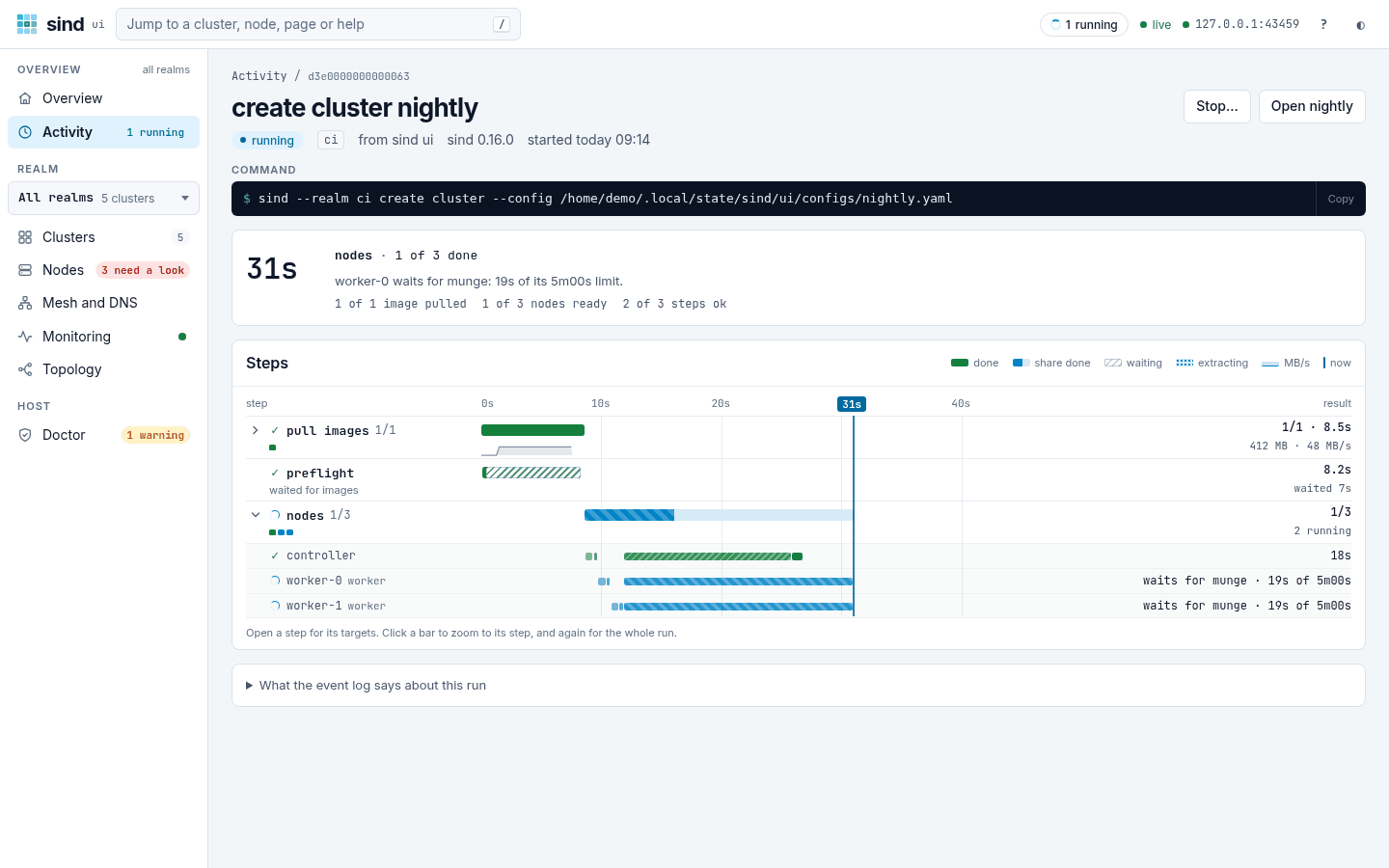
The title of a run is its command and what it worked on, such as create cluster dev. A power command, create worker and delete worker name their nodes once the event log has them, as sind takes them: power reboot worker-[0-1].dev, create worker worker-2.legacy.
The browser tab of a run page shows the step that is running, such as ▸ nodes 3/8 · sind ui, so you can follow the run while you work in another tab. Once the run ends, the tab shows how it ended, such as ✓ create cluster dev · sind ui.
The run page starts with what came of the run, once there is something to say:
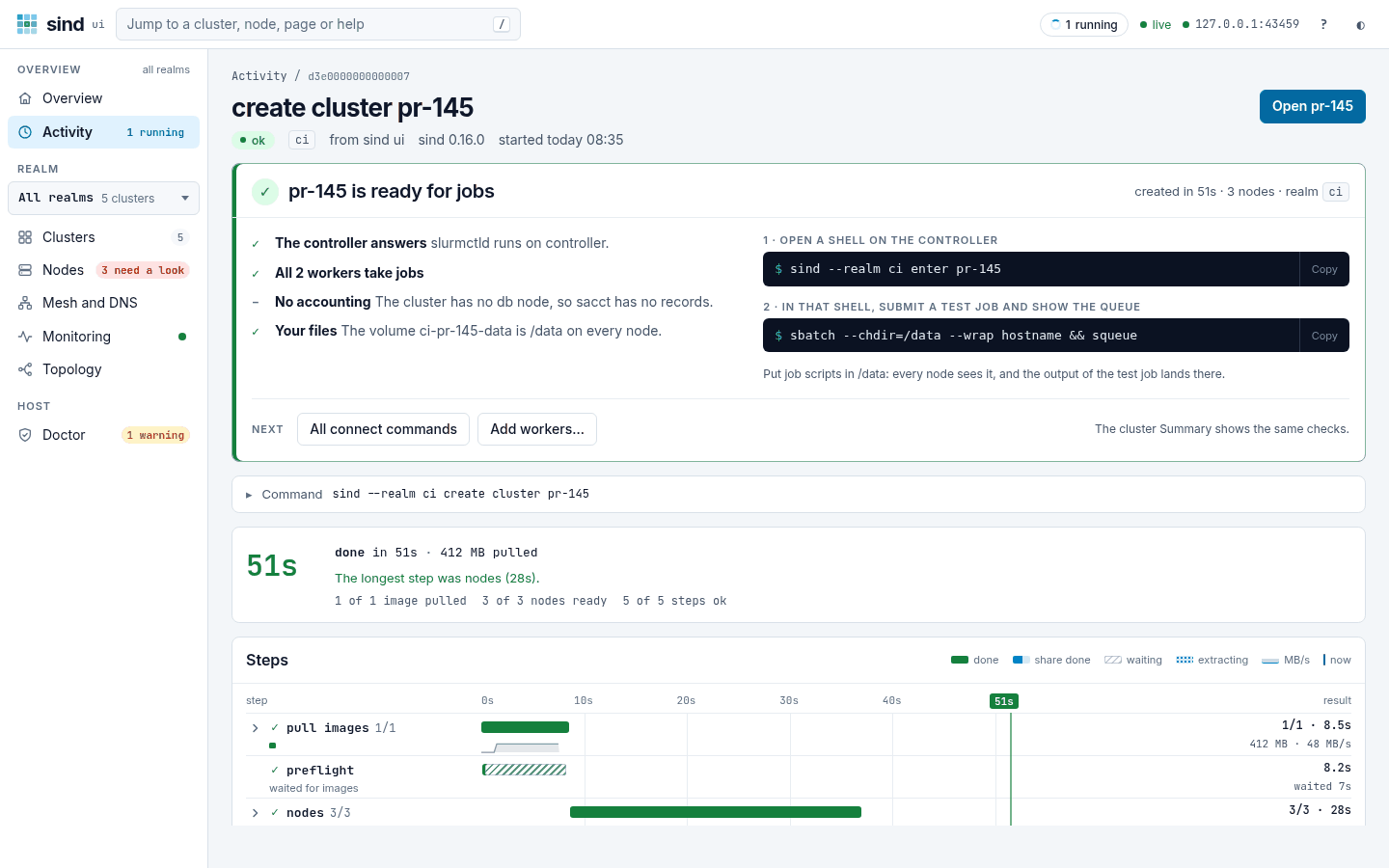
- Ready for jobs: a
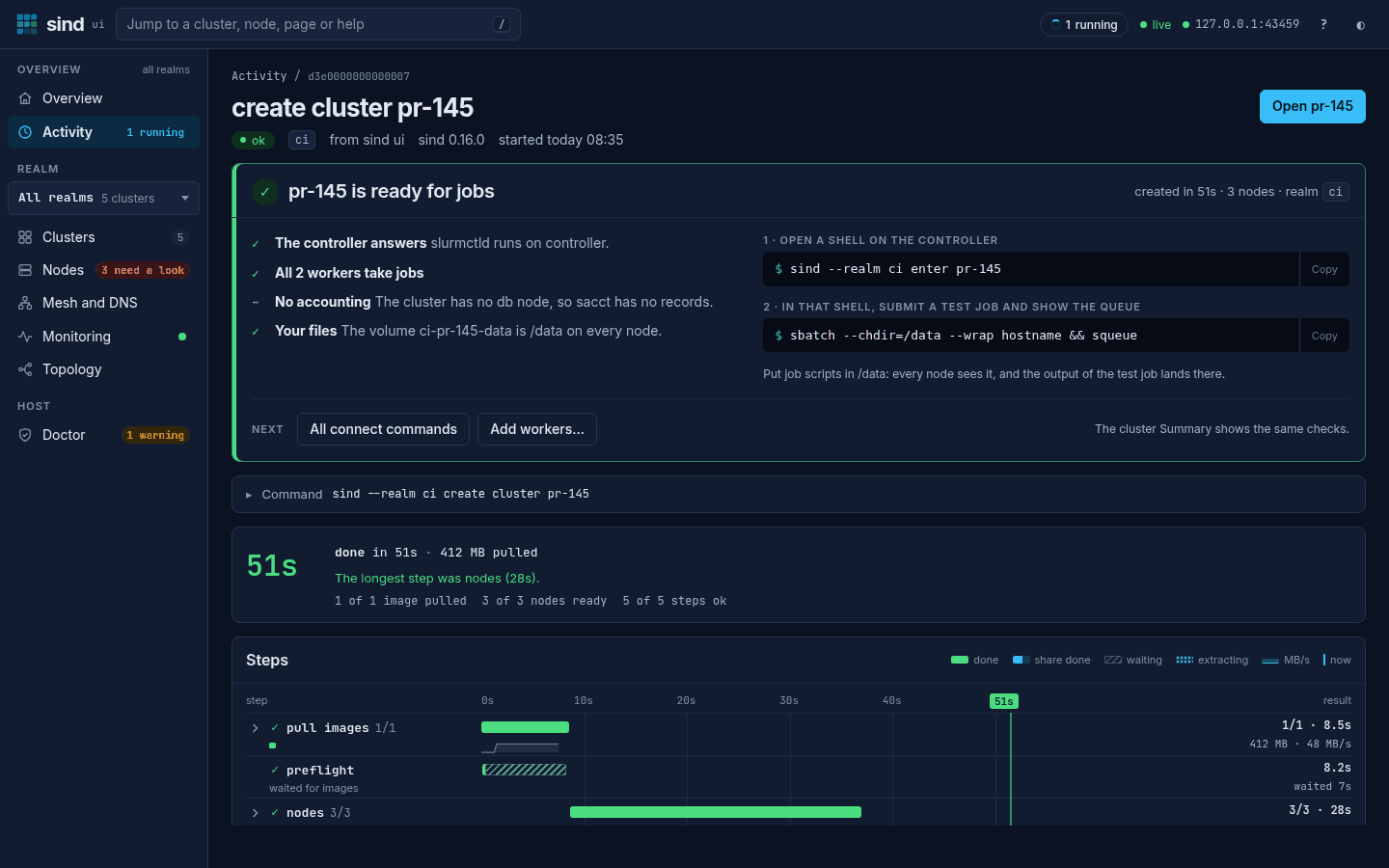
create clusterthat ended ok says that the cluster is ready for jobs, such aspr-145 is ready for jobs, with how long it took, how many nodes it has and its realm. It shows the checks of Ready for jobs on the Summary of the cluster, and the first two commands of a job, numbered, with Copy. All connect commands and Add workers… lead on. When a check fails, the title says that the cluster was created but cannot run jobs yet. - What did not happen: a run that failed says so in the words of the cluster, such as
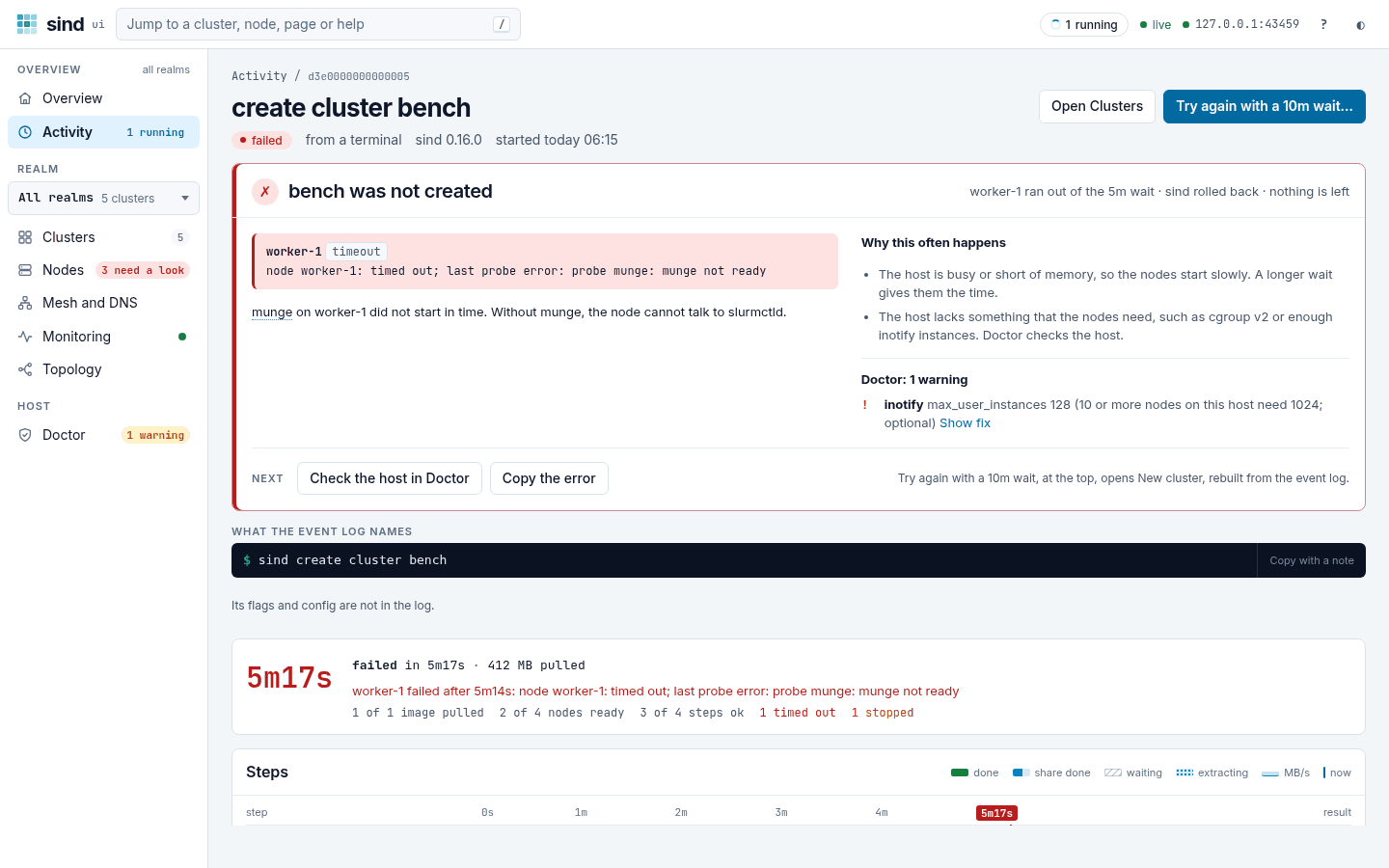
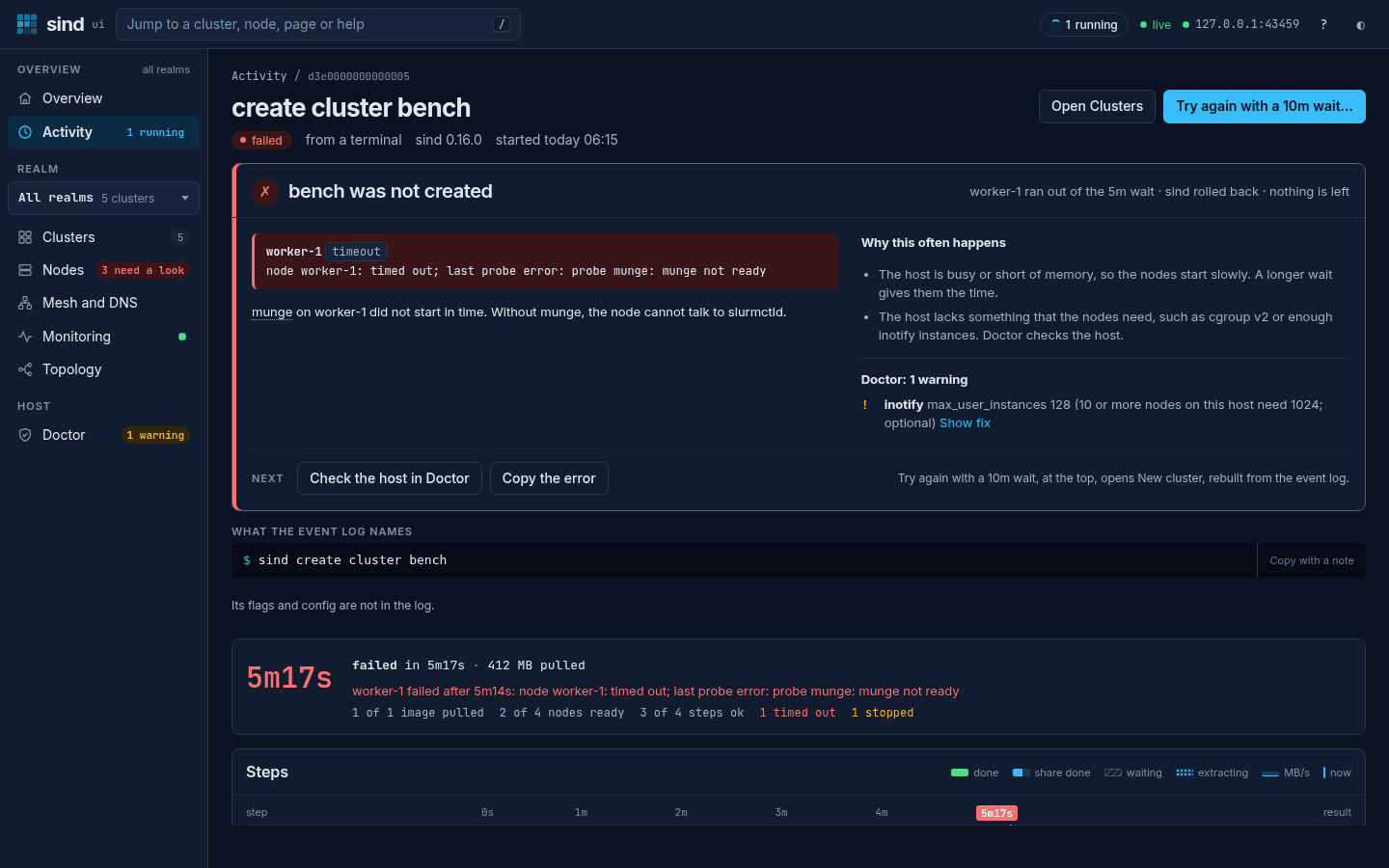
bench was not created, and beside it which nodes ran out of the wait and what the rollback did:worker-1 ran out of the 5m wait · sind rolled back · nothing is left. Below are the errors, grouped by text with the nodes they happened on, and a sentence on what a node waited for, such asmunge on worker-1 did not start in time. Without munge, the node cannot talk to slurmctld.Why this often happens lists the usual causes of a timeout, and below it are the host checks of the last Doctor report that did not pass. Fix the host in Doctor opens Doctor when a check failed, and Check the host in Doctor when there are only warnings. Copy the error copies the error of the command. A rollback that failed or did not finish says what may be left behind. For the logs of a failed service, open the Logs tab of the cluster. While the run goes on, a target that failed shows here under What failed. - Stopped: a run that was stopped says where from, such as
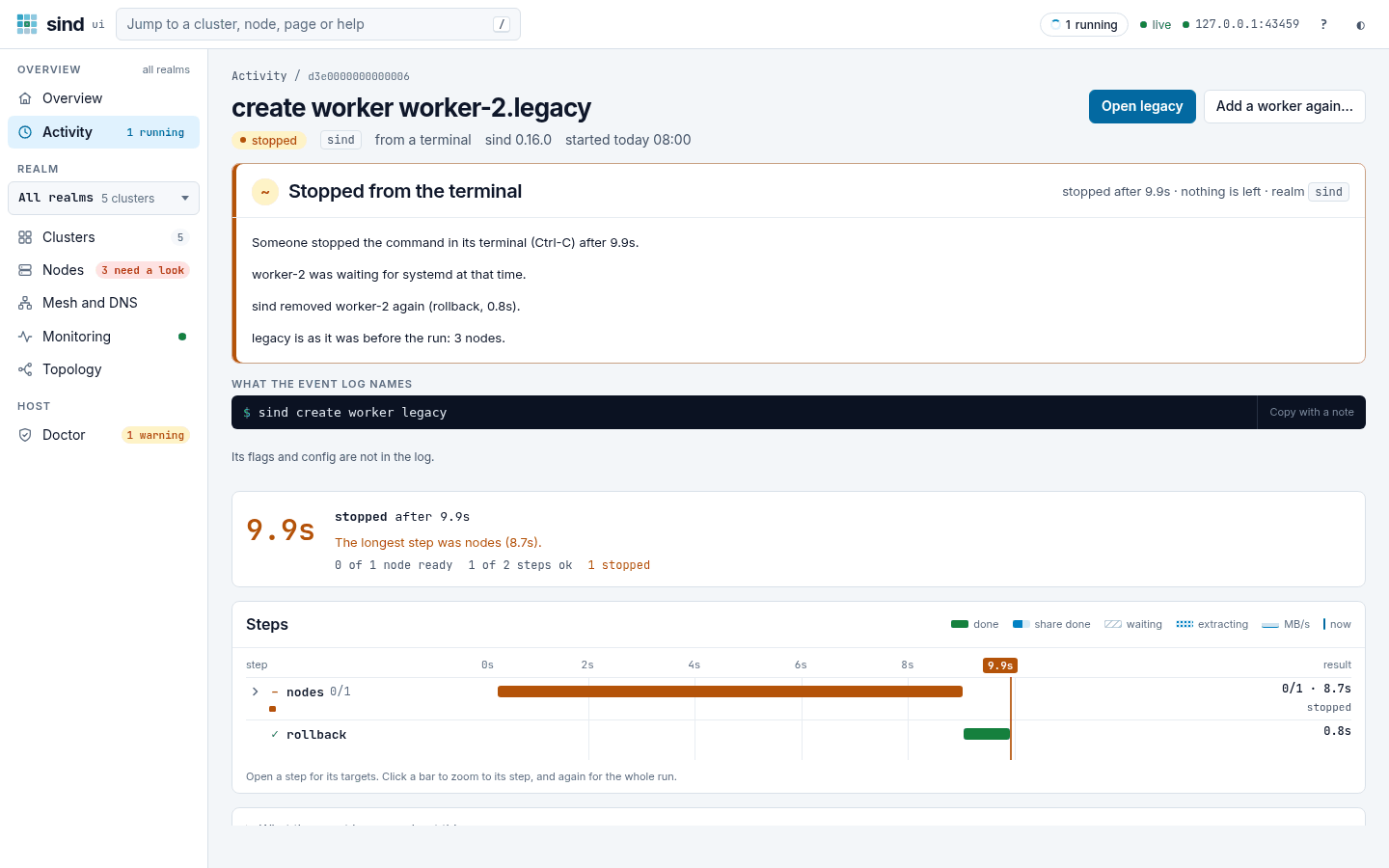
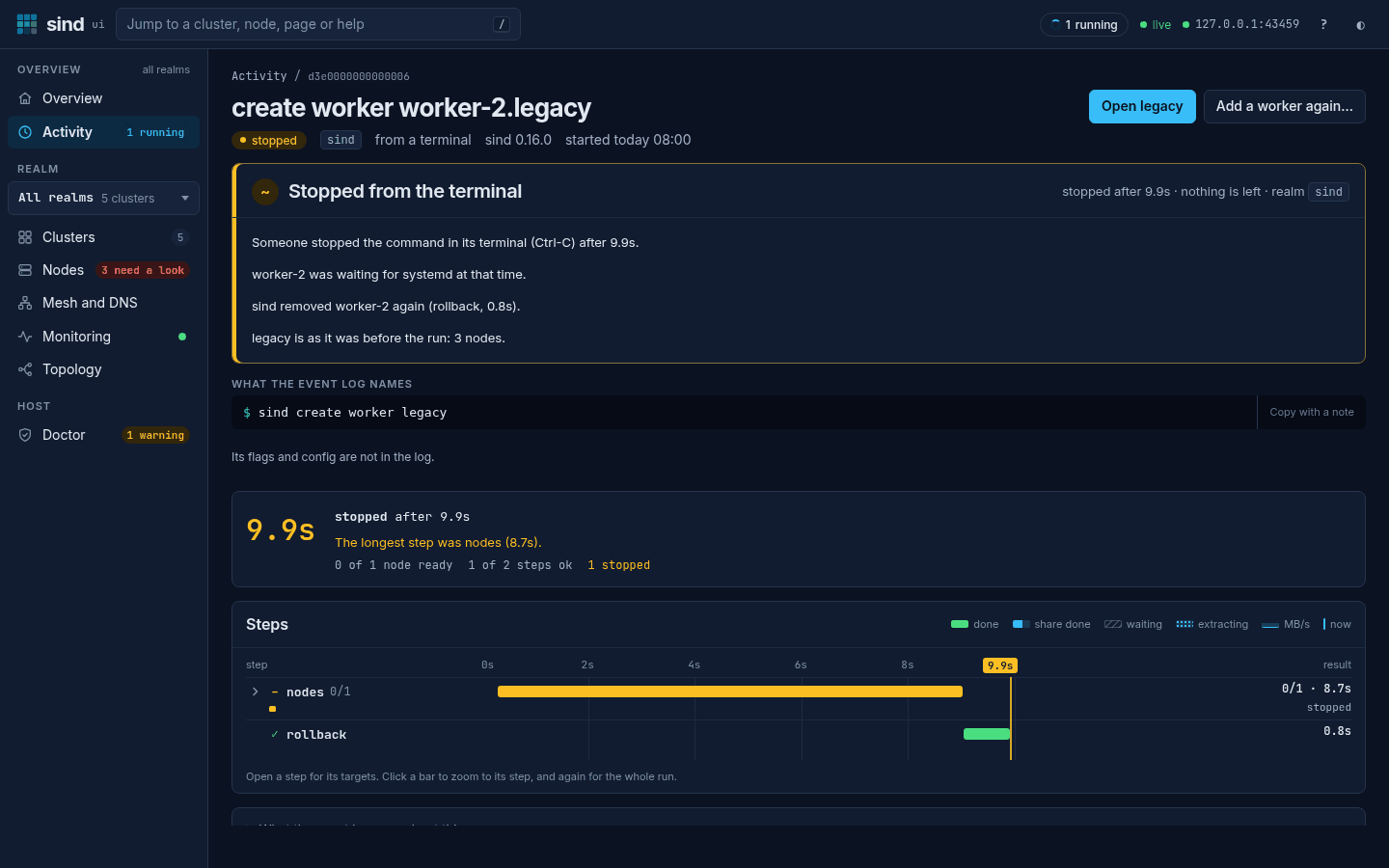
Stopped from the terminal, who stopped it and after how long, what each node was doing at that time, such asworker-2 was waiting for systemd at that time., and what the rollback removed:sind removed worker-2 again (rollback, 0.8s).A run that was stopped while it waited for the realm lock changed nothing.
Below the outcome are:
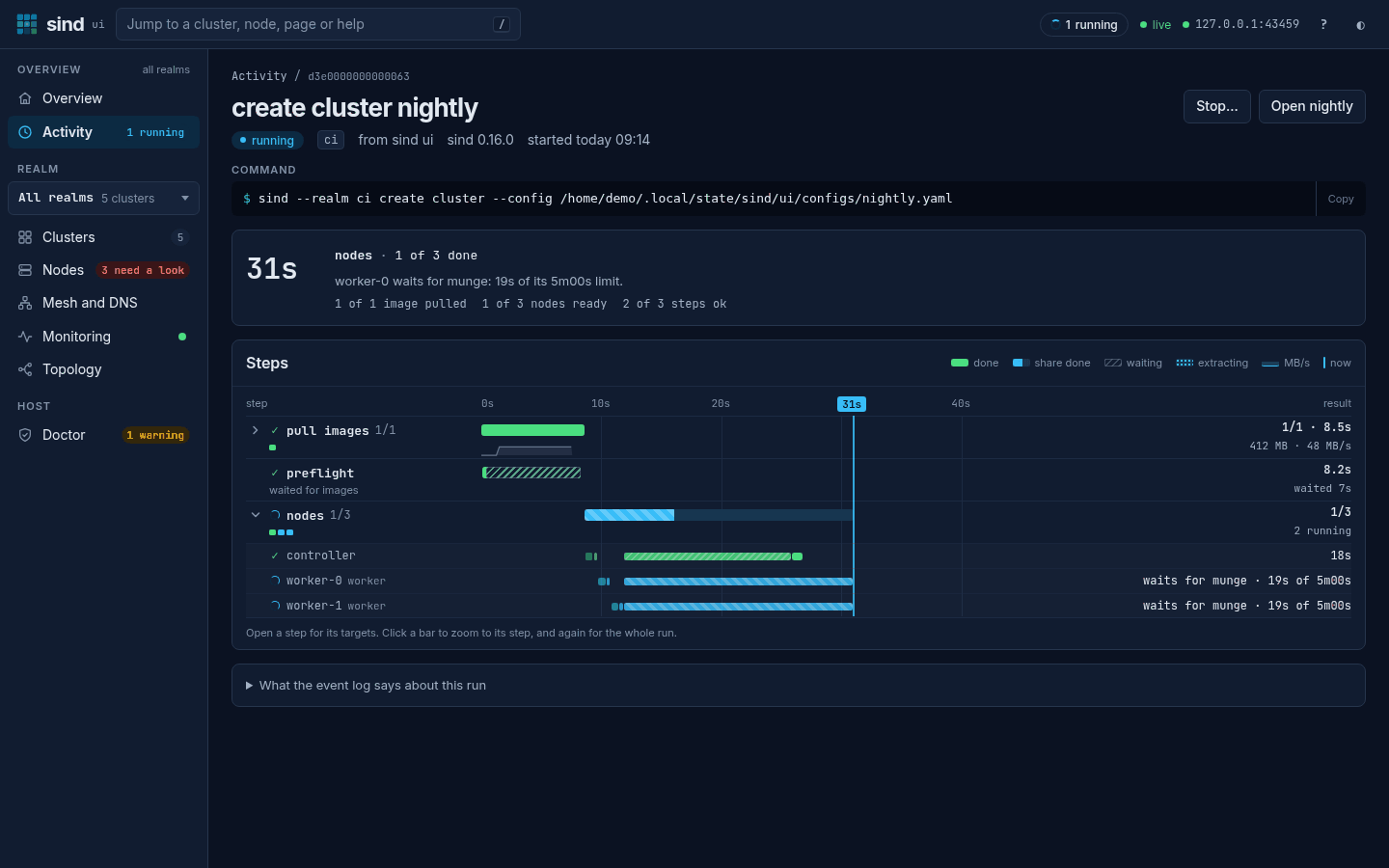
- Summary: the time that has passed, the step that goes on with how far it got, such as
nodes · 1 of 3 doneorpull images · 212 MB at 48 MB/s, or once the run ended how long it took, and the counts in units of the command, such as3 of 3 nodes ready,1 of 1 image pulledand5 of 5 steps ok, with1 timed out,1 failedor1 stoppedwhere there are any. A count of none is left out. A line under it says what the run waits for, such asworker-0 waits for munge: 19s of its 5m00s limit, and how long the run usually takes when earlier runs of the same command ended ok. When no new event came for some seconds, it says so and names what runs, such as adocker createthat reports no progress. - Steps: a timeline. Steps that overlap ran at the same time, and the line marked with the clock is now. At the end of each row is its result: the targets done, how long it took, and for an image pull the bytes and the rate. The bar of a pull has the rate as a line under it, and shows
extractingdotted once the download is done. A step with up to eight targets opens while it runs, and a step that failed opens; a step that you open or close stays as you left it. A target shows a bar for each of its phases, its waits hatched, and what it does, such aswaits for munge · 19s of 5m00s,starts its containerorruns setup. Click a bar to zoom to its step, and Whole run or Escape to go back. - What the event log says about this run: the facts that sind wrote for this run, for a bug report.
A run that sind ui started also shows its command, with Copy, and the config it ran with, under Config used. Once the run ended ok, the command and its config fold into one line under the outcome. sind ui keeps these for the last 25 commands that ended, until it stops. A button leads back to what the command worked on: Open dev for the cluster, Open Clusters once the cluster is gone, or Open Mesh and DNS. It is the button to press when no Try again is, as after a run that ended ok or one that was stopped.
A run that waits for the lock of its realm says so. It links the run that holds the lock when sind ui has a run that can be the command that the event log of the wait names, or else names that command.
When the run failed or was stopped, the buttons at the top are the way back, the dialog and Try again, in that order. Try again runs the same command again. If the command would now differ, as when a cluster changed in between, sind ui opens the dialog instead, so that you can check it. Edit and try again… opens the dialog with the fields of the run filled in, or for create cluster the New cluster page. When nodes of a create cluster ran out of the wait, the button to press is Try again with a 10m wait…, which opens New cluster with the fields of the run and the next longer Wait. A delete, which asks you to type a name, has Try again…, which opens its dialog.
A run from a terminal, or one whose details sind ui no longer keeps, shows the command that the event log names, such as sind create cluster bench, under What the event log names. A power command or delete worker names its nodes, as its title does, such as sind power reboot 'worker-[0-1].dev', and a create worker the count of workers it made. The event log keeps no flags and no config, so the command may have had more; Copy with a note copies the command with a comment that says so. Open bench leads to the cluster when it exists. A create cluster that failed names no realm: a cluster of its name that exists now is another one.
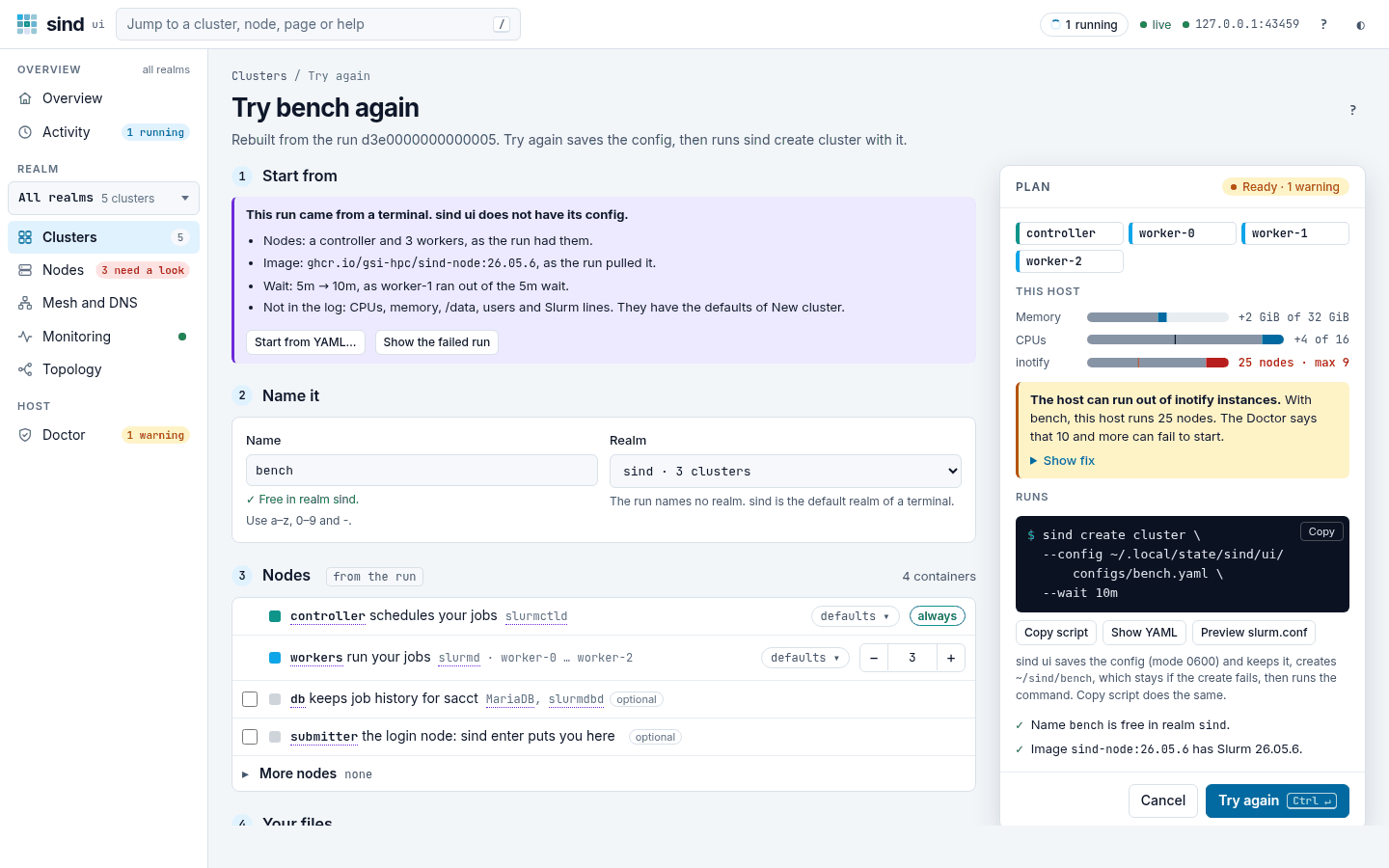
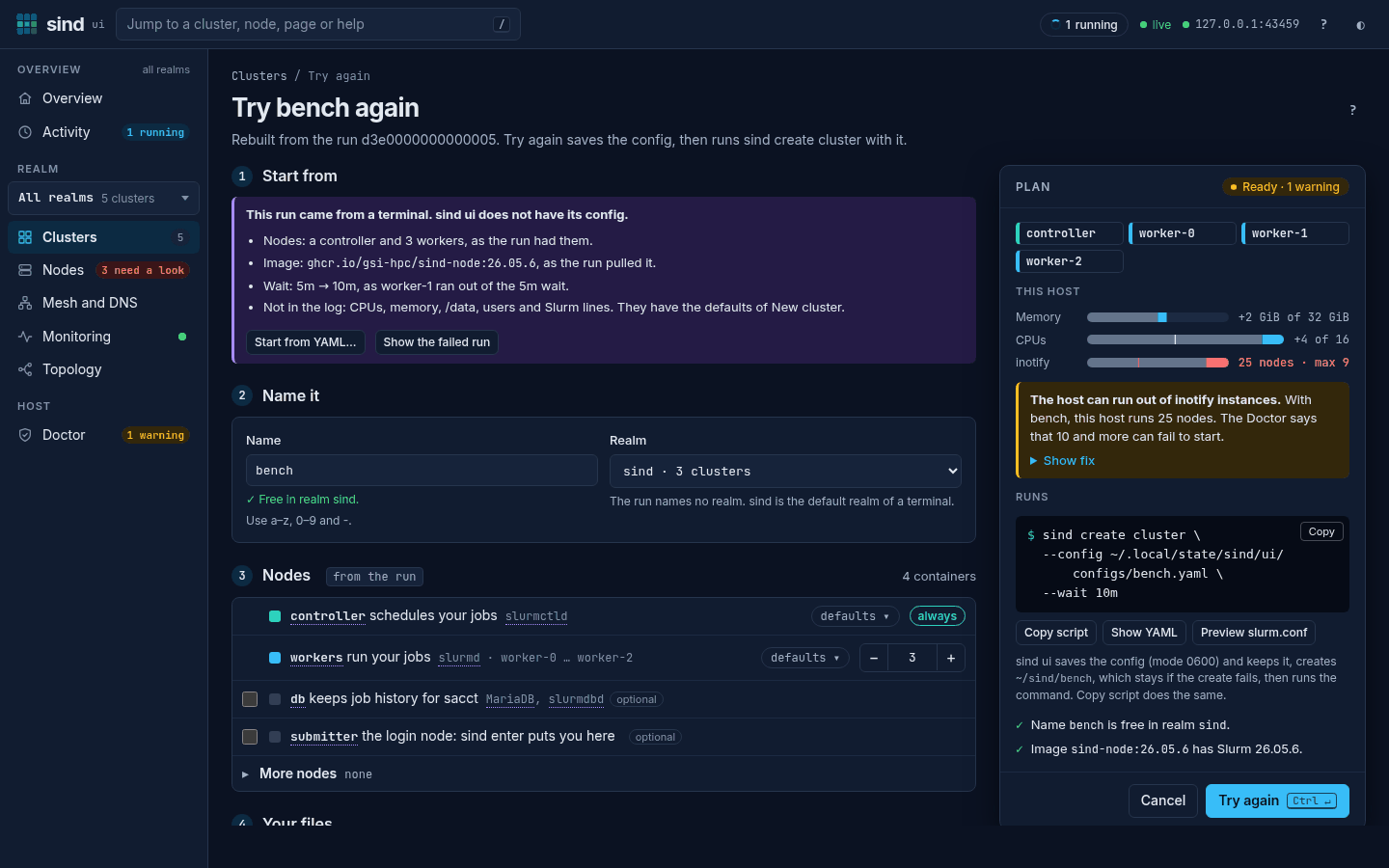
When such a run of create cluster failed or was stopped, Try bench again… opens the New cluster page rebuilt from its event log, titled Try bench again, with a notice of the run in place of the starts; after a timeout the button reads Try again with a 10m wait…. The nodes, when the event log names them, the image that the run pulled and, after a timeout, a longer wait come from the run; Image and Nodes are tagged from the run. A notice says where the run came from and what the event log does not keep: CPUs, memory, /data, users and Slurm lines have the defaults of New cluster. Use Start from YAML… to paste the config you ran with, or Show the failed run to go back. Run options open with the wait of the run, such as was 5m, and say why sind ui set a longer one; pick the old one to keep it. The button reads Try again, and the status of the plan names the wait. Pull the image is set from the image of the run, and a config from YAML keeps it and the wait. A run of create worker has Add a worker again… or Add workers again…, which opens Add workers for its cluster.
The cluster page shows new nodes as dashed tiles while they start, and one banner for the runs that work on the cluster. It names the command, or says how many commands run and how many of them wait for the realm lock. Show progress opens the run.
Runs from a terminal
The progress comes from the activity log. sind writes it by default, in activity.jsonl in its state directory (see The activity log). sind ui reads that log, so a command that you start in a terminal also shows up in the UI. Its run is marked with a terminal label. sind ui can show it, but it cannot stop it. Press Ctrl-C in that terminal to stop it.
A run that another program started, such as a CI job or an MCP client that hands sind a trace, is marked with an other program label. A run that sind ui started stays marked as from sind ui, also after you restart sind ui.
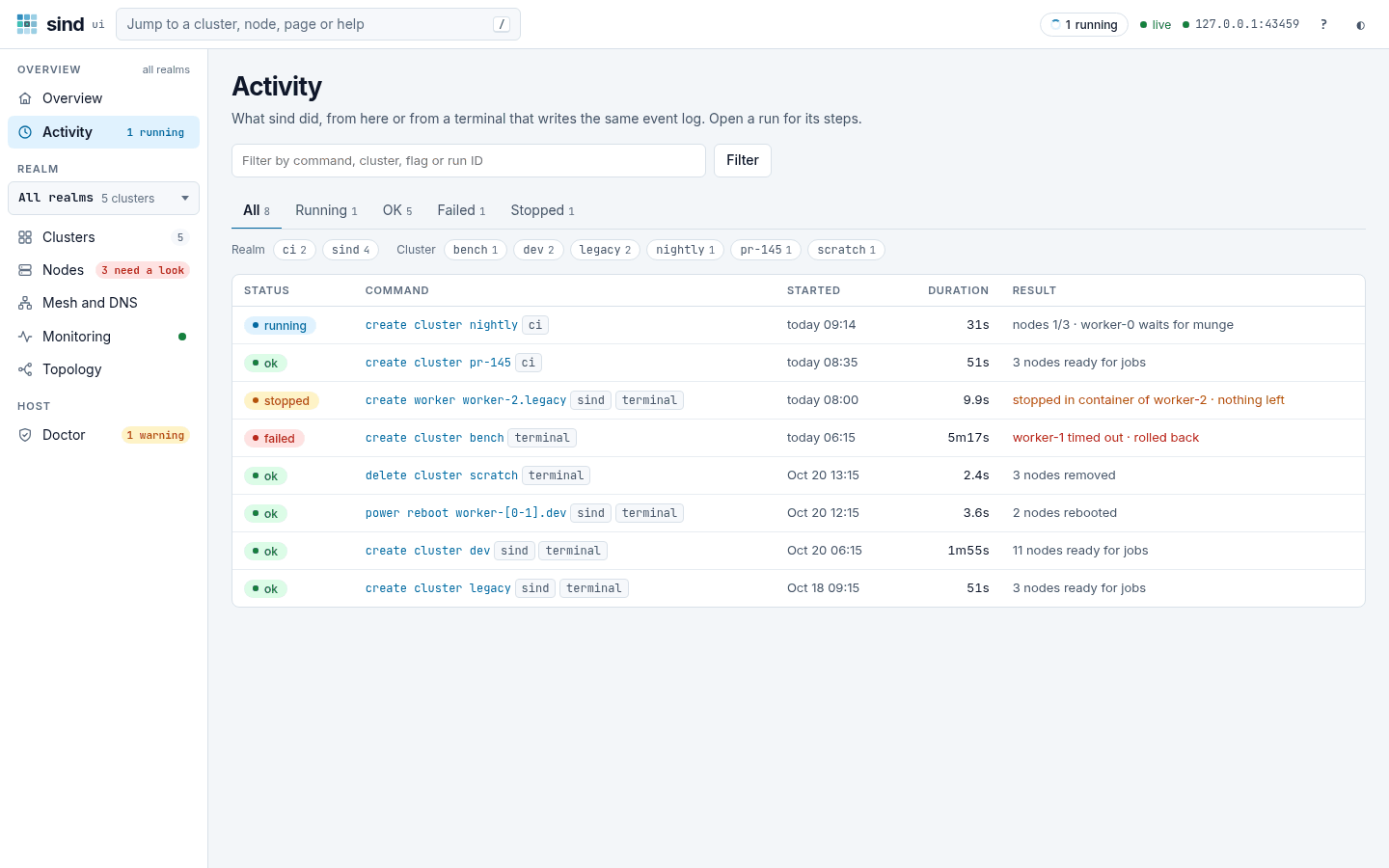
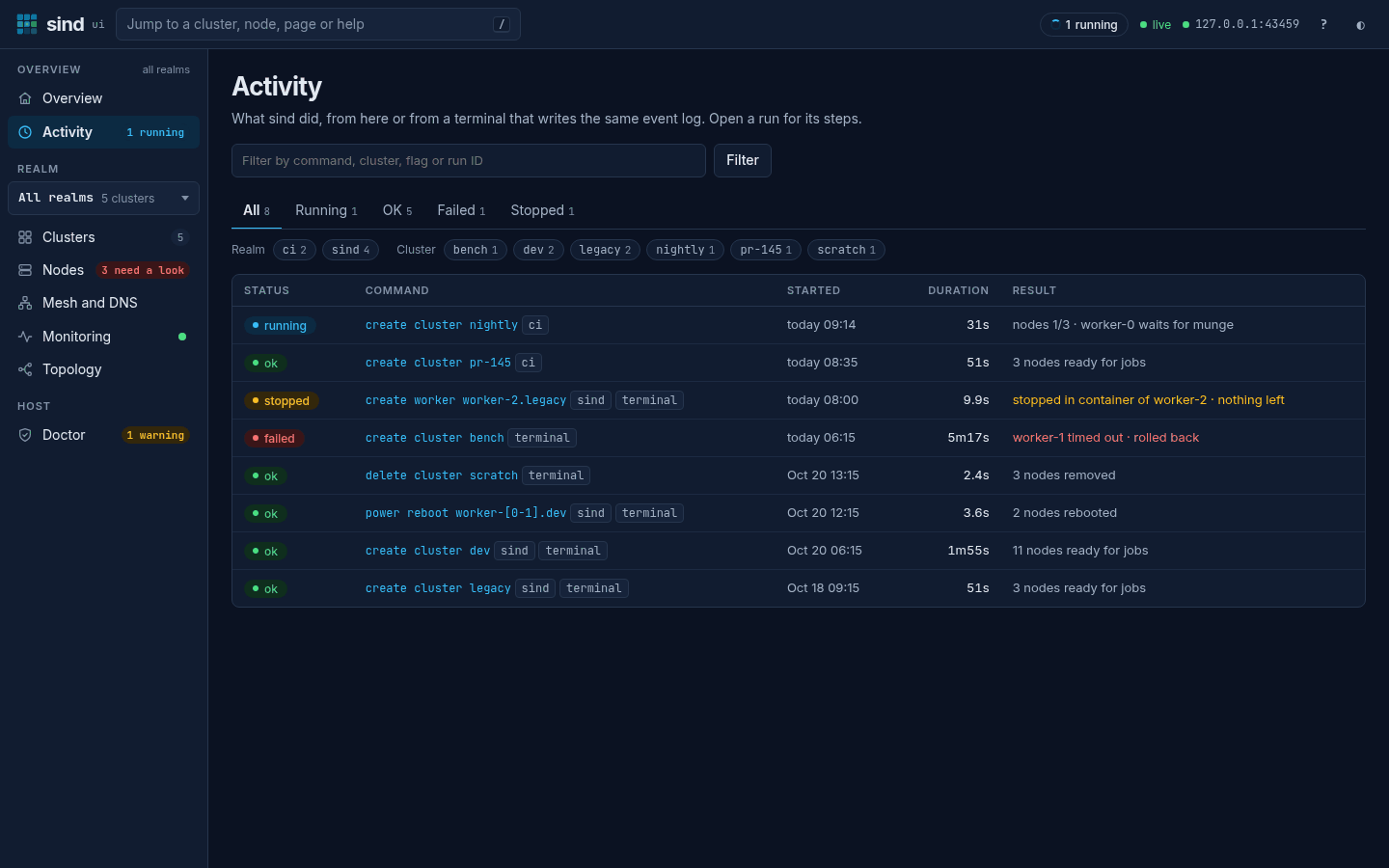
The Activity page lists the runs, from this UI and from a terminal. A run of this UI shows its command with the main flags, such as create worker dev --count 3 --cpus 4, and its realm. A time of today reads today 09:14. Result says what came of each run: 3 nodes ready for jobs, 2 nodes rebooted, worker-1 timed out · rolled back in red, stopped in container of worker-2 · nothing left in amber, and for a run that goes on what it does now. To find a run, type a part of its command, a cluster, a node, a flag or its run ID in the filter field and press Enter. The tabs filter by status, and the chips by realm and by cluster; press a chip again to turn it off. Clear filter shows all runs again.
When several commands run on a cluster, the banner of the cluster page has Show them, which opens Activity with the runs of that cluster that go on.
Stop a run
Press Stop… in the strip or the list of the task dock, or on the run page. The page asks you to confirm, and says what stays when the command stops:
- A create removes the nodes or workers it has made so far (rollback). The saved config stays.
- A delete keeps what it has removed so far. The rest stays, and you can delete it again.
- A power command leaves the nodes it has handled as they are now.
- A command that still waits for the lock of its realm has changed nothing yet.
Press Stop it to stop the command, or Keep running (or Escape) to go back. sind ui sends SIGINT to the command, the same signal as Ctrl-C in a terminal. The command stops as the list above says, and the run ends as stopped. The button shows Stopping… until the command has stopped, which for a create includes its rollback. Steps that have not started do not start.
Stop… sends SIGINT only, never SIGKILL. If you stop the UI while a command runs, sind ui interrupts the command and waits up to 60 seconds for the rollback. Only after that does it kill the command. A command that runs from a terminal is not stopped by the UI at all.