Actions
Run an action
Action buttons open a dialog, or for New cluster a page of its own. The dialog shows:
- the fields of the action, such as the number of workers or the wait limit;
- the Runs line, which is the exact
sindcommand; - a Copy button for that command;
- whether you can undo the action.
Press the button of the dialog, such as Create hpc, Add 3 workers, Reboot worker-0 or Delete cluster dev, or press Ctrl+Enter (Cmd+Enter on macOS), to start the command. The button names what it changes. Enter in a field does not start it, unless the dialog has only that field, such as the name to type for a delete. The UI checks the fields against the cluster as it is now. It also builds the command again when you press the button. If that command differs from the one in the dialog, the UI refuses to start it.
When the command starts, the dialog closes and you stay on your page. The strip of the task dock at the bottom shows the command and its progress, with a link to its run page, so you can start the next action at once. New cluster opens the run page of its command instead, and so does Delete on the page of the cluster that it deletes, or on the page of one of its nodes. Back in the browser then returns to the page that you started from, in one step.
Esc, Cancel, a click beside the dialog or Back in the browser closes it, and the focus goes back to the button that opened it. When you have changed a field, the dialog asks first: Keep editing or Discard. When you leave the page while such a dialog is open, your browser asks first. New cluster keeps a draft instead.
You can copy the command and run it in a terminal. It makes the same change. This is useful to learn the CLI, to script the change, or to run it again later. On the New cluster page, Copy script gives a shell script that does all that Create does: it saves the config, creates the data directory if needed, and runs the command with --realm and the name of the cluster, as SIND_REALM and SIND_CLUSTER in your shell would otherwise take the place of the config’s realm and name. Like the command, it leaves out a wait of 5 minutes and a pull that is off, so SIND_WAIT and SIND_PULL in your shell apply to it.
sind create worker dev.The actions
Each action runs one command:
| Action | Command | Undo |
|---|---|---|
| New cluster | sind create cluster --config FILE |
Delete the cluster |
| Add workers | sind create worker CLUSTER --count N |
Delete the workers |
| Delete cluster | sind delete cluster NAME |
Cannot be undone |
| Delete clusters | sind delete cluster NAME, once for each |
Cannot be undone |
| Delete workers | sind delete worker NODES |
Cannot be undone |
| Power | sind power VERB NODES |
Use the opposite verb |
| Drain or resume workers | sind exec CLUSTER -- scontrol update NodeName=NODES State=DRAIN Reason=WHY |
Resume, or drain |
| Restart a service | sind ssh NODE -- systemctl restart UNIT |
Nothing to undo |
| Connect or disconnect a container | sind connect container NAME |
Disconnect or connect it again |
| Delete realm | sind --realm REALM delete realm |
Cannot be undone |
New cluster
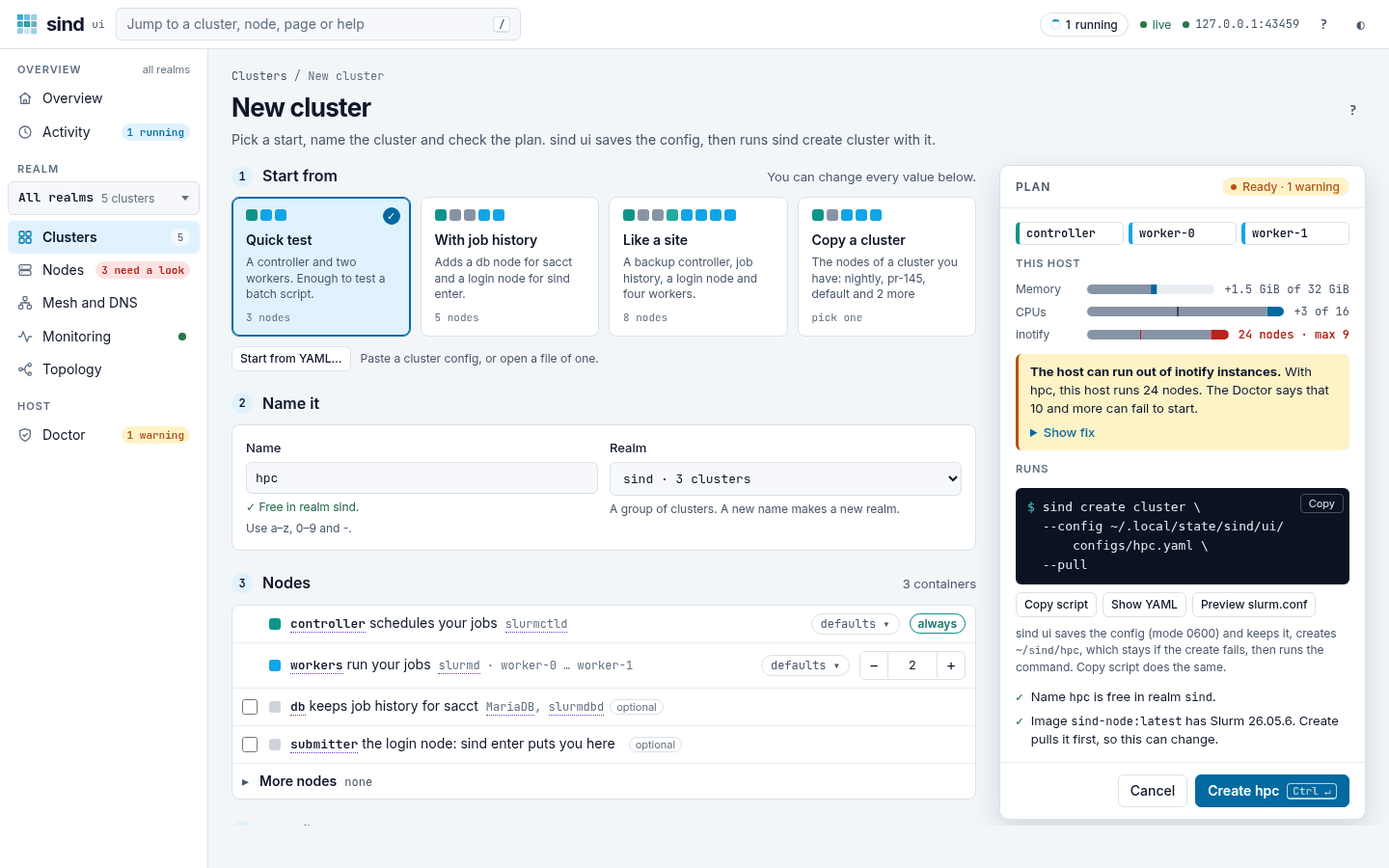
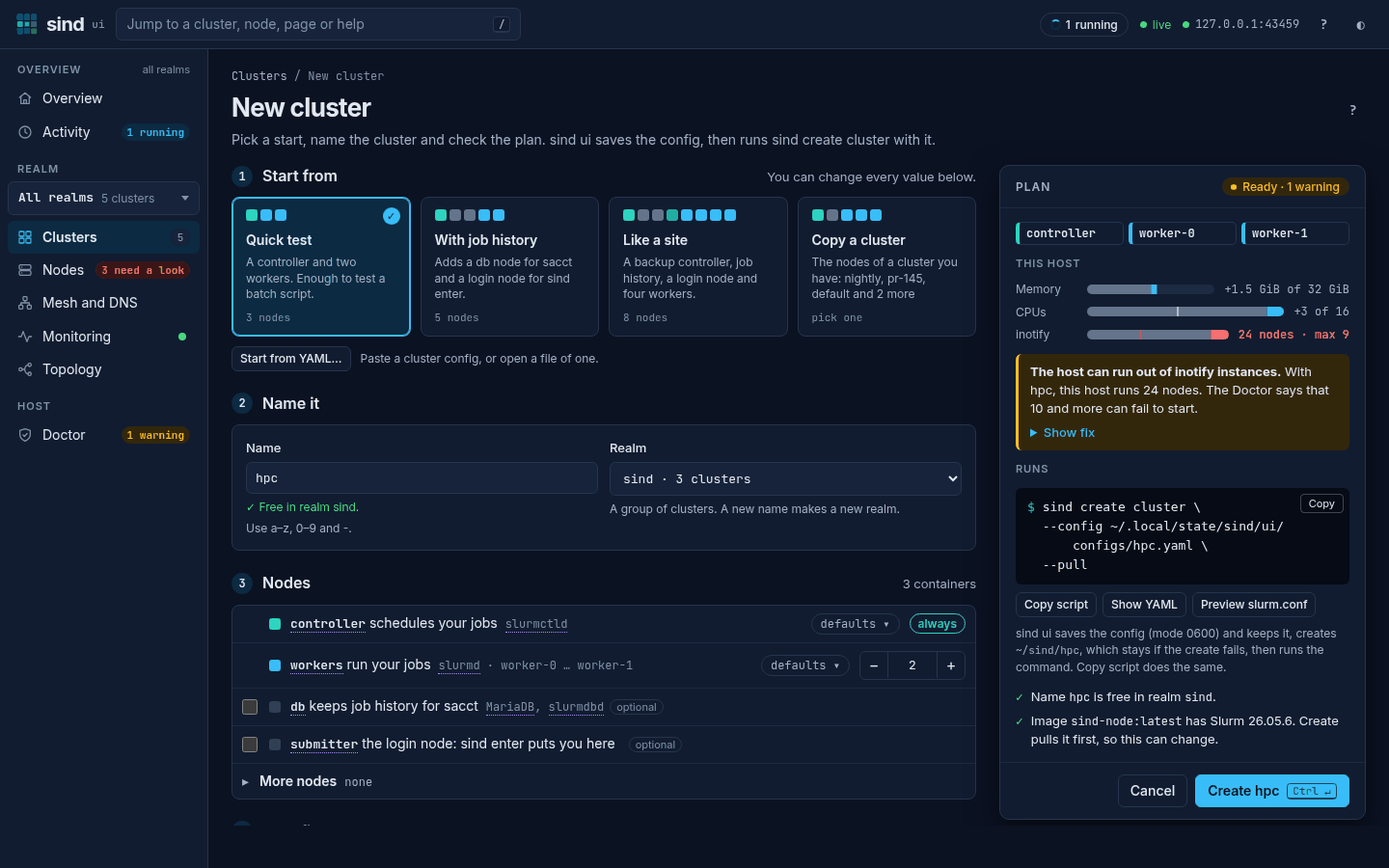
New cluster is a page of its own, at /clusters/new. Its form has five parts, top to bottom, and the plan stays in view at the right. On a phone, the plan follows the form, and what the nodes use, the status, Show the plan and the Create button stay at the bottom of the screen.
- Start from has a card for each start: Quick test (a controller and two workers), With job history (adds a db node for
sacctand a login node forsind enter), Like a site (a backup controller, job history, a login node and four workers), and Copy a cluster, which lists the clusters you have and takes their nodes; its card then names the cluster, such asdev · realm sind. A card sets the nodes; you can change every value after that. Start from YAML… takes a config instead. - Name it has the name and the realm. The name is a free one of the realm, such as
hpcorhpc-2, selected when you first click or tap it, so that typing replaces it, and the data directory follows the name until you change it. The realm is the one the switcher of the rail picked, orsindunder All realms; the list has the realms there are, each with its clusters, and New realm… for a name of your own. A realm that sind ui does not know gets a note in the plan that the cluster makes a new realm, so a typo does not make one unnoticed. - Nodes names each node by what it is for, then its daemon: the controller schedules your jobs (
slurmctld), the workers run them (slurmd), db keeps job history forsacct, submitter is the login node thatsind enterputs you on. Every cluster has one controller. A checkbox adds each of the other roles, and a field with − and + sets the number of workers. More nodes holds the backup controller, the api node for the Slurm REST API and + Add worker group, which adds a group of workers with a size of its own; with more than one, the groups areworkers 1,workers 2and so on, also in the messages of the plan. The size button of a node opens its own fields: image, CPUs, memory and/tmp, and under More unmanaged, capabilities, devices and security options. An empty field takes the node defaults, which it shows in grey. - Your files shows where the files of your jobs are: the directory on this host or the Docker volume, and
/datain every node, with a command that copies a job script in,cpfor a directory ordocker cpthrough a node for a volume. Change… opens the data storage: a directory on the host or a Docker volume, which needs no directory, mounted at/dataor at the path you give, and CVMFS, which mounts CVMFS read-only at/cvmfson every node. sind ui writes the data storage into the config, so the cluster never uses the directory you started the UI in by accident. Docker mounts only a directory that exists: sind ui creates a missing one first, unless you clear Create the directory if it is missing; the directory stays if the create fails. The Connect tab of a cluster shows the same card. - More options has the image, the node sizes, the Slurm config, the users and the run options. The node sizes are Small, Medium, Large or your own CPUs, memory and
/tmpsize; every node takes them. In Users, identity, monitoring, each user, group and Slurm account is a row with its name; an empty UID or GID takes the next free one from 1000. More on a user gives its primary group, groups, the accounts it coordinates and its Slurm admin level. An account has a parent and limits, each a pair of a sacctmgr option, such asMaxJobs, and its value. Slurm accounts need the db node. Identity picks where the nodes find the users:local,nssSlurmorclientIds, and withclientIdswhether the controllers get the users too. Monitoring adds the nodes to the realm’s Prometheus, Loki and Grafana. Slurm config has a tab for each file,slurm.conf,cgroup.conf,gres.conf,topology.conf,plugstack.confandslurmdbd.conf, with the lines that sind adds after its own; a dot marks a tab with lines. In Run options, the wait for ready is 2, 5 or 10 minutes, no limit, or a time you type, such as15m. The summary of the section sayswait 5m (default)when the command leaves out--wait, as it waits 5 minutes without it. Pull the image is on for an image of a registry whose tag can move to a newer image, such aslatestor26.05, and off for a fixed tag, a digest or an image you built. It follows the image until you tick or clear it.
The UI saves the cluster config in ~/.local/state/sind/ui/configs/, with mode 0600, so you can run the same command again from a terminal.
The plan shows the nodes, what they take of this host, the command and the config as you type, and below the command what it checked, such as that the name is free. This host has a bar for the memory and one for the CPUs of the nodes that run now, in every realm, and of the new ones, against those of the Docker host, and a bar for each limit of the Doctor that the number of nodes counts against, such as the inotify limit. When the nodes cross such a limit, the plan says so with what the Doctor reports and its fix under Show fix, whose commands keep their lines and scroll sideways when they are longer than the plan is wide. The plan warns when the nodes may use more than 80% of the memory of the host. More than all of it is a problem until you tick Create anyway: Docker caps the memory of each node but sets none aside, so idle nodes use less, but jobs that use it all make the host run out of memory.
A wrong field gets its message below it and a line in the plan, which links to the field. The message says what to change, such as use only lowercase letters, digits and -, no spaces, such as my-cluster. The plan also lists every error that sind finds in the config, all at once, where sind itself stops at the first. An error that a row of the users causes, such as an account that a user names but no row declares, goes to the field of that row, in the words of the form: add the account physics under Slurm accounts first, or remove it from mia. The plan then takes the default for a wrong field, so it never goes blank. Create works only when the status at the top of the plan says Ready; Ready · 2 warnings counts the warnings of the plan, which do not stop it. On a phone, the status at the bottom of the screen shows the number of problems and the field of the first, such as 1 problem: Name, or the warnings, such as Ready · 1 warning; press it to go to that field, also in a folded section, or to the first warning. When the command cannot start, the plan says why above the rest, which stays.
Runs shows the command: sind with --realm when the realm is not sind, its words, then a flag on each line. A line breaks between words or after a / of a long path, never inside a name, and a path in your home directory reads ~/. Below it, the plan says that sind ui saves the config and creates a missing directory before it runs the command. Copy script, Show YAML and Preview slurm.conf follow it. Preview slurm.conf shows the slurm.conf that sind writes, with the lines that your form sets marked, and the sind-nodes.conf that it includes. Then sind runs lists what sind does once the nodes are up: the groupadd and useradd commands on the nodes that get the users, and the sacctmgr commands of the Slurm accounts on the controller. They show once the config is valid.
The page keeps what you typed as a draft in your browser until you create the cluster or discard it. When you open New cluster again, it starts from your draft and says so; Start over asks in its place, then discards the draft. Cancel goes back to the page you came from. Once you press Create, the run page takes the place of New cluster, so Back on the run page returns to the page you came from.
The plan checks more than sind does before the create starts. An image reference must be one that Docker takes, such as ghcr.io/gsi-hpc/sind-node:26.05: lowercase, no spaces, a tag after : and a digest after @ (sha256: and 64 hex digits). An account limit QOS, DefaultQOS or QosLevel may name only the QOS normal, as a new cluster has no other and sind creates none. sind takes your lines of Slurm config after its own, and Slurm takes the last value of a parameter, so yours wins. sind refuses only a few, such as SlurmctldHost with a backup controller and the database parameters of slurmdbd.conf; the plan warns when slurm.conf sets ClusterName, SlurmctldHost, SlurmUser, StateSaveLocation, SlurmdSpoolDir or PlugStackConfig, which the cluster needs as sind sets them, and of a line that is no Key=Value pair, outside plugstack.conf.
The plan lists the images of the nodes with their Slurm release, which sind ui reads from the label sind.slurm.version of a sind-node image. For an image without the label, or one that is not on the host, Check image starts it once with slurmctld -V, as sind does; for an image that is not on the host, it pulls the image first. sind ui keeps what a check found for that image. Monitoring needs Slurm 26.05 or later in the controller and worker images: with an older image, Create stays off, unless Create pulls a newer copy of the image first, which the plan then says. The plan also warns of an api node whose image is older than 26.05, as sind-node images have slurmrestd from that release, and of workers with a newer Slurm than the controller’s.
Edit YAML, under Show YAML in the plan, puts the whole config into an editor, also what the form has no field for, such as named Slurm config fragments or defaults capabilities. Start from YAML…, below the starts, opens the editor empty: paste a config there, press Open a file…, or drop a file on it, such as a config that you keep in git (at most 64 KiB). The editor takes the place of the form, which stays locked until you choose Discard YAML edits; the run options still apply. Name and Realm stay above the editor: they show the name and the realm of the YAML, and a change of either goes into it, as a new line if the YAML has none. Discard YAML edits puts back the name and the realm of the form. A YAML without a name makes the cluster default, as sind does. The plan follows the YAML, and sind ui saves it as you wrote it, with your comments. A missing host directory of the YAML is created first. Copy YAML, next to Edit YAML, copies the config, to keep it in a file of your own.
Add workers
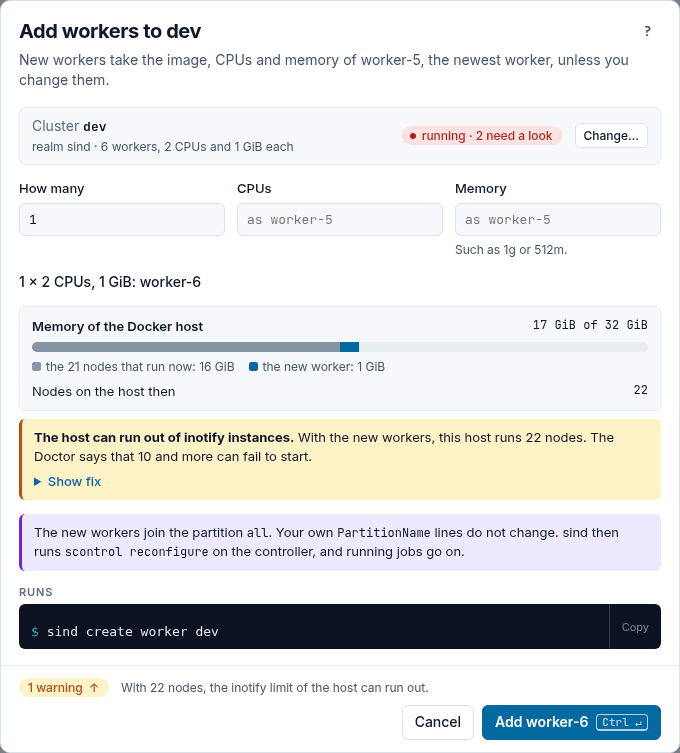
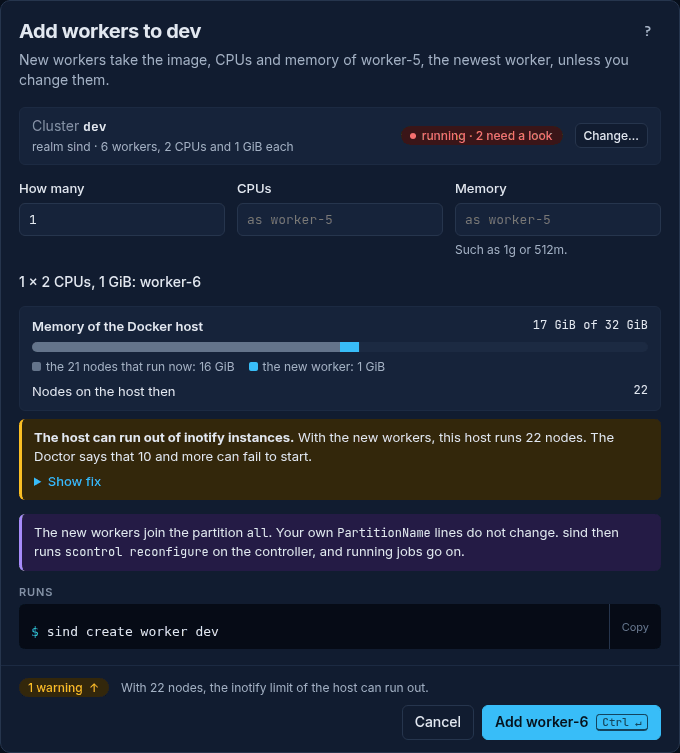
Add workers shows the size and the names of the new workers, such as 3 × 2 CPUs, 1 GiB: worker-6 … worker-8. New workers copy the newest worker of the cluster that is managed like its controller, which sind ui reads from its container; the CPUs and memory fields name that worker in grey. A cluster without workers gets sind’s defaults, and so does a limit that the newest worker has none of. The button names what it adds: Add worker-6 or Add 3 workers.
Opened without a cluster, as from the Overview or the jump box while there are several, the dialog first lists the clusters by realm, with their health, their workers and the size that new ones copy. A cluster that a command creates or deletes now is off, with why. Once you pick one, it shows as a row with Change…, which goes back to the list and keeps what you filled in.
The dialog sets the memory limits of the new workers and of the nodes that run now, in every realm, against the memory of the Docker host, and counts the nodes. A bar shows the nodes that run now and the new workers, and marks the end of the host’s memory once they come to more. Docker caps the memory of each node but sets none aside, so the limits can come to more than the host has; above 80 % the dialog warns, and above all of it How many says how many more workers fit, and the button stays off until you tick Add anyway. A wrong field gets its message below it, such as write a size such as 2g or 512m, and the command takes the default until you fix it. Memory takes sizes as people write them too, such as 2 GB or 512 MiB, and the command writes them as 2g or 512m. It warns when a worker asks for more CPUs than the host has, and when the nodes cross a limit that the Doctor reports, such as the inotify limit, with the fix under Show fix. A note says that the new workers join the partition all and that sind reconfigures slurmctld, which running jobs survive.
While the dialog checks a change of its fields, its footer shows Checking….
Power
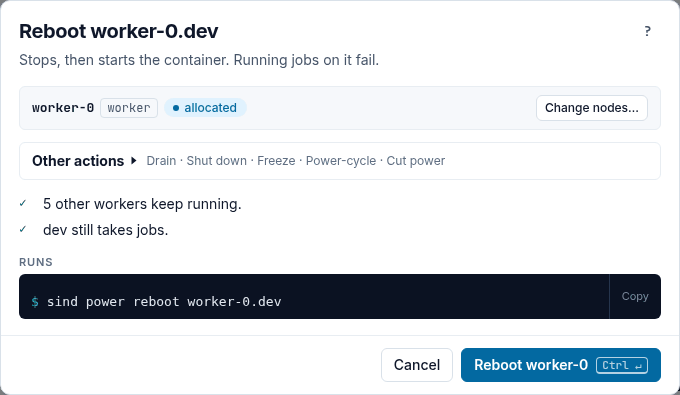
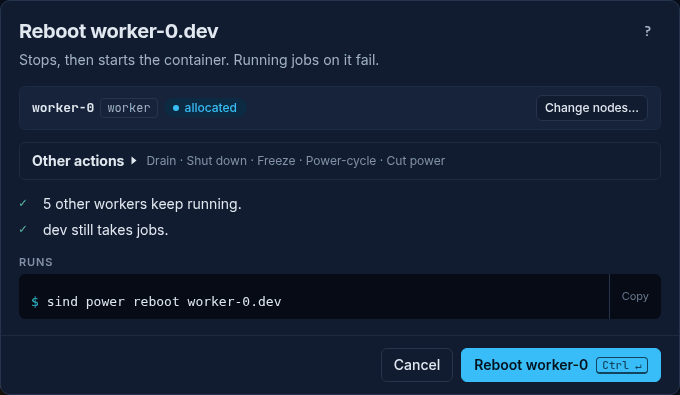
The power buttons of a page, such as Reboot… in a node’s Power menu or Reboot 3 nodes… in the bar of the Nodes tab, open the Power dialog as a short confirmation: its title names the action and the nodes, such as Reboot worker-4.dev or Reboot 3 workers of dev, its lead says what the action does, and it lists the nodes with their Slurm state and issues, and what keeps running. Change nodes… opens the picker, and Other actions the other actions.
Opened without an action or nodes, as from the jump box, the dialog is the picker: quick picks (Need a look, Idle, Drained, All workers), a node set field that ticks the nodes it names, such as worker-[0-3], and a table of the nodes with their role, Slurm state and reason, and issues. An action that fits none of the ticked nodes is off, and a line says why, such as Start (worker-4 runs already). A link for an action that fits none of its nodes opens the picker, and the button stays off. Until you pick an action, the button stays off. The dialog sorts the actions into three groups:
- Slurm (scontrol): Drain and Resume change what Slurm does with workers and leave their containers running. Drain lets the running jobs end and starts no new ones on the nodes; it needs a reason, which
sinfo -Rshows. Resume lets the nodes take jobs again. Both runscontrol updatein the cluster withsind exec, which writes no progress, so their task has no run page. - Containers: power on, shut down, reboot, freeze and unfreeze change the containers, up to 8 at a time.
- Can lose data: power-cycle and cut power kill the containers at once. Run them only when you need to.
Before an action that stops nodes, the dialog warns when they include the controller in control, the standby controller of a pair, the db node or every running worker of a cluster, and says what that does to jobs, failover and accounting. The button names the action and the nodes, such as Shut down 3 nodes or Drain 2 workers.
Restart a service
Restart slurmd… on the page of a node whose service failed, Restart… beside a service that is down, and the fix of its row in Needs you or Ready for jobs open the Restart a service dialog. It lists the services that sind checks on the node, with their state, and restarts the one you pick with systemctl on the node: the container and its other processes go on, so it is the fix to try before a reboot. It warns when the service is active. Opened from the jump box, it first asks for the node, and names the services that are down on each. The restart logs in with sind ssh, so it does not run while sshd is down: Reboot… is the fix then. The command writes no progress, so the task has no run page; the card of the node turns green once the service is active again. See Restart a service.
Delete
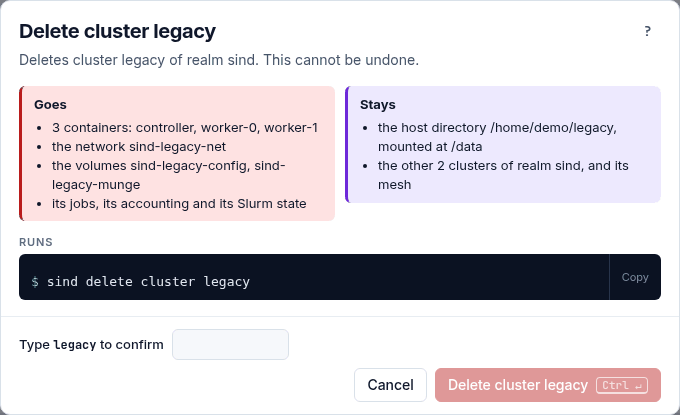
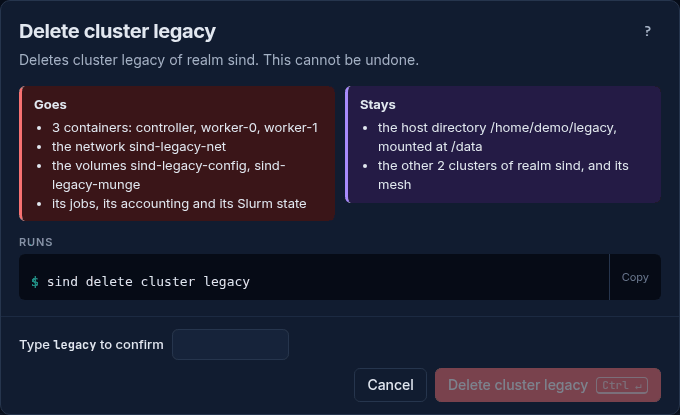
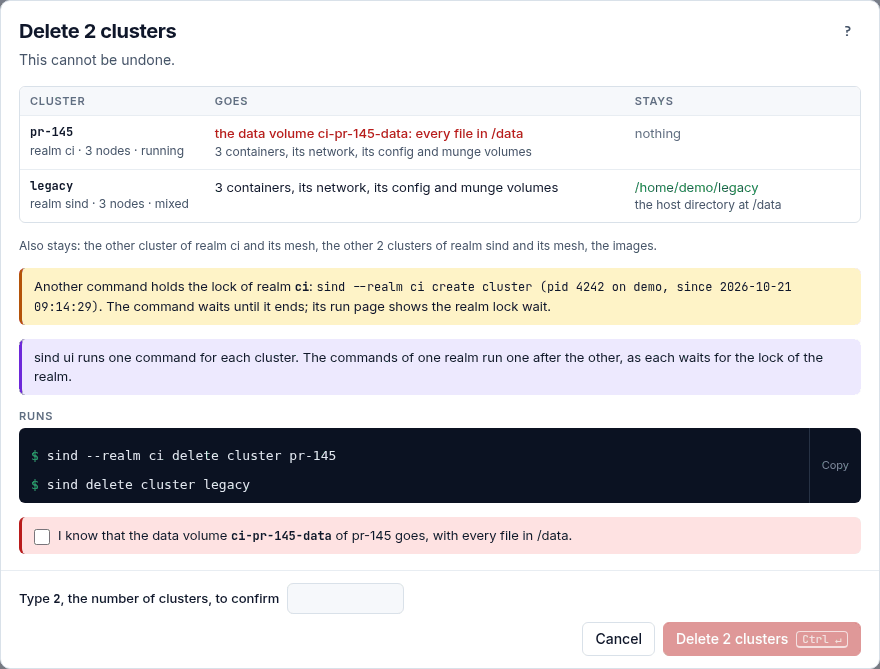
Delete cluster, Delete workers and Delete realm list what goes and what stays: the containers, the network, the volumes and the Slurm state of a cluster go, and the host directories it mounts stay. A data or home volume comes first and in red, with what is on it, such as the data volume sind-dev-data: every file in /data, and a box below the command names it again, such as I know that the data volume sind-dev-data of dev goes, with every file in /data. The button stays off until you tick it. The button names what it deletes, such as Delete worker-5 or Delete cluster dev.
To confirm, type the name of the worker when you delete one worker, the number of workers when you delete several, else the name of the cluster or the realm, in the field beside the button. The label says which it is, such as Type worker-5, the name of the worker, to confirm or Type 3, the number of workers, to confirm. The name must match with its case; spaces around it do not count. Until it matches, a hint in the footer says why the button stays off. Delete workers lists the workers in a table with their Slurm state and issues, and names the workers that go and those that stay as node sets, such as worker-[4-5].
Every dialog keeps its footer in view: the button, Cancel, what to type, and the status, such as 1 problem: How many or 1 warning, which takes you to it, with the first problem or warning in words beside it.
Delete realm deletes every cluster of the realm, its mesh and its monitoring stack, and detaches the containers that sind did not make. It shows a table with a row for each cluster and one for the realm: what goes of each, its data volumes in red, and what stays, the host directories of the cluster or the containers that sind detaches. Open it from the ⋯ menu of the realm’s row on the Overview, or from Mesh and DNS. Its command always names the realm, so a copy of it deletes this realm in any shell. In the same way, the commands of Delete cluster and Delete clusters name each cluster, and that of Delete workers the cluster of the workers, default too, so a copy deletes the same cluster or workers in a shell with SIND_CLUSTER.
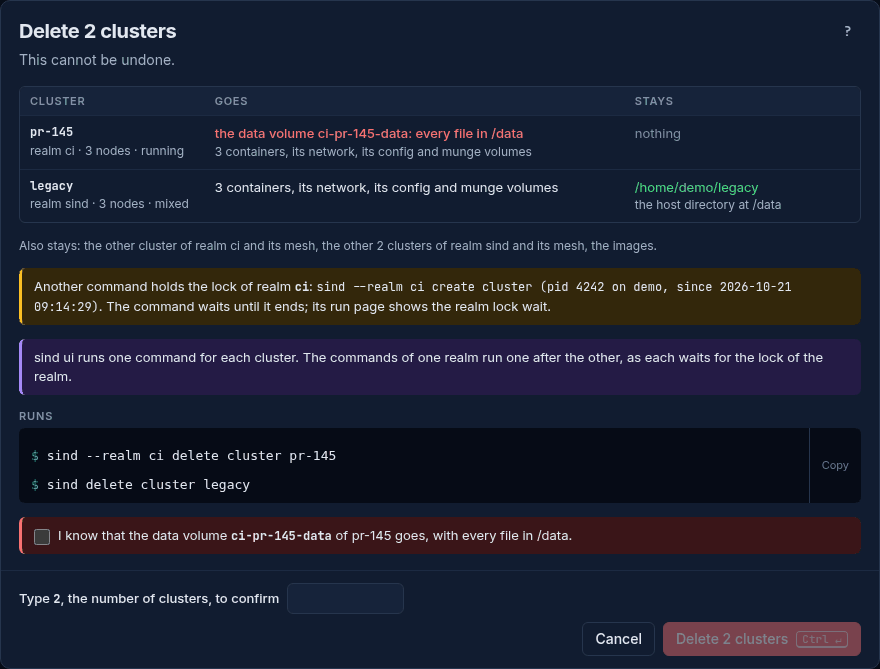
Delete clusters deletes the clusters that you ticked on the Clusters page, up to 32. It shows the same table as Delete realm, with a row for each realm that goes with its last clusters, and its title names those realms, such as Delete 3 clusters and realm sind. When the clusters come from several realms, each row names the realm of its cluster. It asks you to type their number, and its button, such as Delete 2 clusters, starts one sind delete cluster for each. A cluster that is gone by the time the dialog opens is named and left out. Delete clusters in the jump box takes you to the Clusters page to tick them. The commands of one realm run one after the other, as each waits for the realm lock. The page goes back to the list, and the list of the task dock shows each command.
The realm lock
A dialog that changes a realm with a running command shows which command holds the realm lock. Your command waits until the other one ends. See Troubleshooting.